HelpHelpProperties and tenancies
Documents, templates and signing
Start a statement of terms, privacy notice, pet letter or agreement from a template, fill it from the tenancy, and have everyone sign it in order.
- Reviewed
- Read
- 5 min
Documents in Abide.Rent start from a template. Fields such as the tenants' names, the rent and the address are filled in from the records, and everyone signs in the order chosen. A signed document cannot be changed, and each party keeps their own copy.
Who this is for: letting agencies, landlords and tenants.
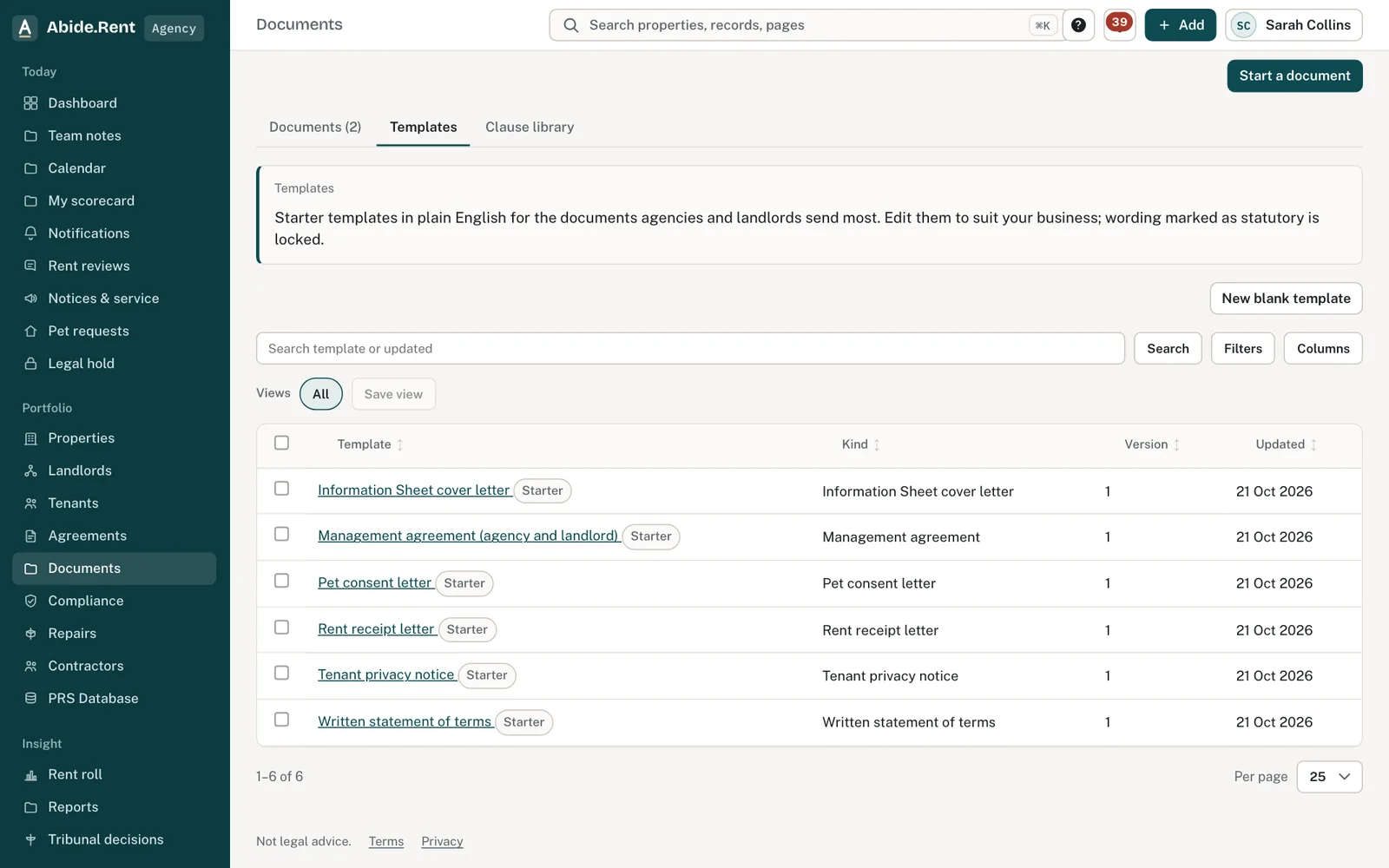
Templates: edit one or start a blank template. Statutory wording is locked.
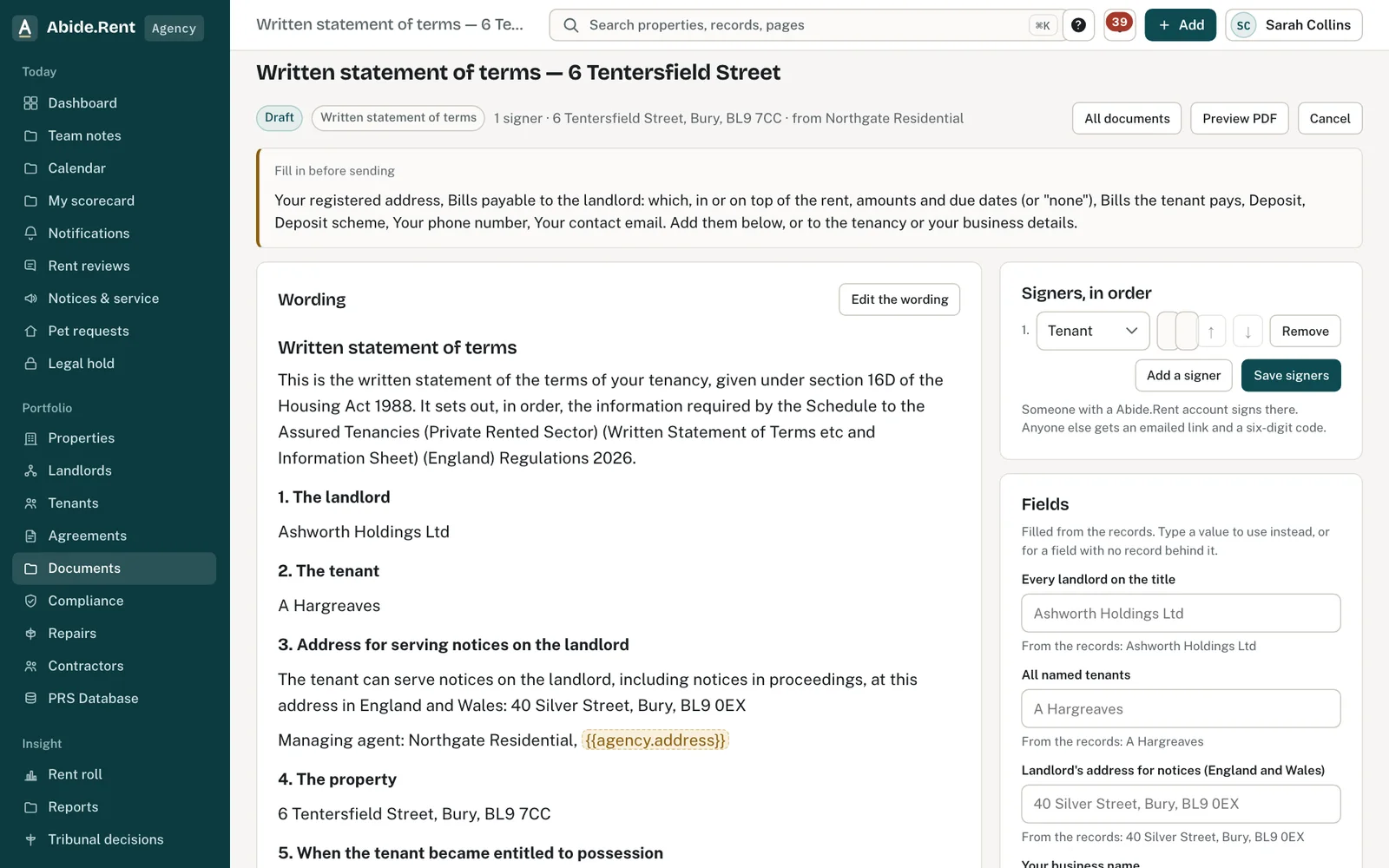
Fields filled from the records, the signing order, comments and versions.
What you are deciding
Which template to use, who signs and in what order, and whether the wording is ready to send.
Your options
- Use a starter template. Every account has six: a written statement of terms, an Information Sheet cover letter, a pet consent letter, a management agreement, a tenant privacy notice and a rent receipt letter.
- Edit or copy a template. Change the wording around the fields. Each save is a version, and you can compare any two. Wording marked as statutory is locked.
- Sign in Abide.Rent. Anyone with an Abide.Rent account signs there: the agency, the landlord in their own account, the tenant in their portal.
- Sign from an emailed link. Anyone without an account gets a link by email and a six-digit code to the same address before they can sign. No account is needed.
- Read and confirm. A privacy notice only needs reading. The tenant selects I have read this, which is recorded like a signature.
How to do it
- Open Documents and select Start a document, or select Start a document on a tenancy.
- Choose the template. The draft opens with the fields filled in from the tenancy, the property, the landlord and your business details.
- Fill in anything still missing. A document cannot be sent while a field is empty, and the missing fields are listed.
- Check the signers and their order: by default you, then the tenants. Add someone by name and email to send them a link.
- Select Send for signature. The first signer is asked; each of the others is asked in turn.
- When everyone has signed, download the signed PDF. It ends with an audit certificate.
What the audit certificate shows
The SHA-256 fingerprint of the wording that was sent for signature, and for each signer their name, how they signed (in Abide.Rent, or by emailed link and code), whether the signature was typed, drawn or a confirmation of reading, the time in London, their IP address and their browser. The fingerprint of the signed PDF itself is kept by Abide.Rent and checked every time it is downloaded.
What a signed document updates
Preparing the statement of terms on a tenancy opens a draft from your template, with the fields filled in from the records. Complete the draft, then send the full statement to every named tenant. Each tenant confirms receipt for themselves, and the statement is recorded as given on the tenancy once all of them have. A signed statement of terms or Information Sheet cover letter makes the same records: the date the statement was given and each tenant's receipt. A signed privacy notice ticks Privacy notice given on the move-in checklist.
About the starter wording
The starter templates are written in plain English and you can change them to suit your business. A signature here is a simple electronic signature; it is not suitable for a deed.
A worked example
On Monday 12 October 2026 Northgate Residential starts a pet consent letter for the tenancy at 12 Acacia Avenue, rent £950.00 a month. The tenant's name, the landlord's name and the address fill in from the records; the agency types in "a small dog called Biscuit". The agent signs first at 10:05. The tenant, Pat Singh, is told in the portal and signs at 18:40 by drawing on a phone. Both download the same signed PDF with its audit certificate.
What Abide.Rent does for you
- Fills each field from the records and lists any that are missing before you can send.
- Keeps every saved version of a template or draft, with a line-by-line comparison.
- Asks each signer in turn, by notification or by emailed link and code, and tells everyone when it is complete.
- Stores the signed PDF with its fingerprint and refuses any change once it is signed.
- Shows every message about the document, and whether it was delivered and opened.
If something goes wrong
- “Some fields have no value yet. Fill them in before sending.”
What to do: Fill each field listed under Fill in before sending, or add the detail to the tenancy or business details. - “Locked statutory wording cannot be changed, moved out or removed. Edit only the text around it.”
What to do: Leave the locked block as it is. - “It is not your turn to sign this document, or it is no longer open for signing.”
What to do: Signers sign in order. Wait for the person before you, or check the document has not been cancelled. - “Only a draft can be edited. Cancel it and start a new one to change the wording.”
What to do: Once sent, wording is fixed. Cancel and start again. - “A document can have at most … signers.”
What to do: Remove a signer, or split into two documents. - “The stored file does not match the hash recorded when it was signed.”
What to do: The stored copy may be damaged. Do not rely on it; open a ticket straight away.
Common mistakes
- Sending a document before checking the fields that came from the record, such as names and the rent.
- Sending a link to a shared email address. The code goes to the same address, so whoever reads that inbox can sign.
- Starting a new document instead of cancelling the old one when the wording changes. Cancel the old one so its link stops working.
What to do next
More in Properties and tenancies
 Damp, mould and emergencies: Awaab's Law stages (proposed)Choose to work to the Awaab's Law timescales on damp, mould and emergency repairs. They apply to social housing; for private renting they are proposed, not law yet.
 Record a deposit, its protection and the prescribed informationRecord the deposit amount, the date it was received, the scheme, the date it was protected and the date the prescribed information was given.
 The repairs register and response targetsTenants report repairs with photos in their portal. Each one has a severity, a response target and a dated trail everyone can follow.