Upload several certificates at once
Drop up to ten certificate PDFs or photos. Abide.Rent reads each one, and you check and confirm every row before anything is saved.
- Reviewed
- Read
- 4 min
Upload several reads a batch of certificates for you: the type, the date of the check, the expiry date, the certificate number and the address. Each file becomes a row you check and confirm.
Who this is for: letting agencies and landlords.
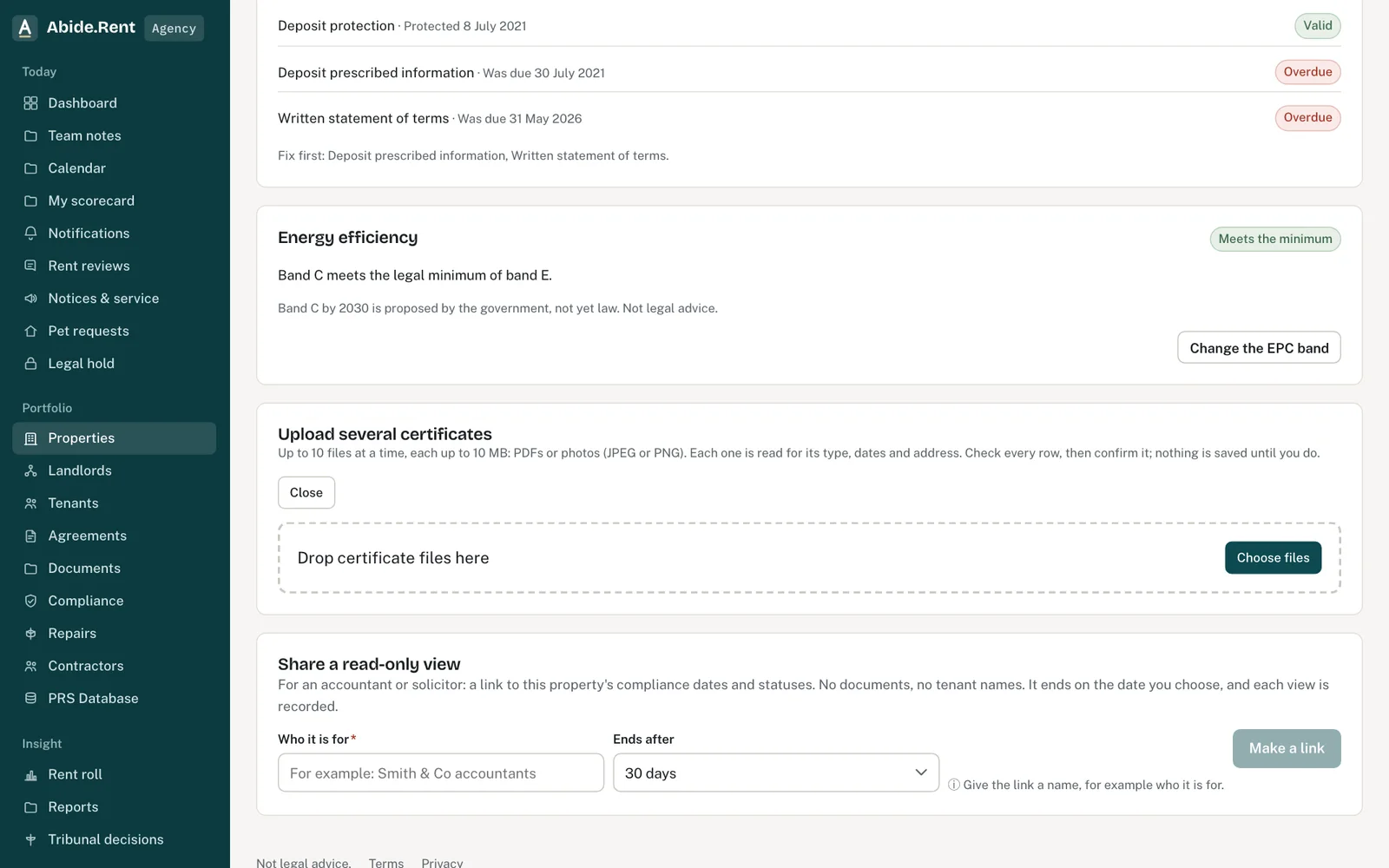
Upload several: choose the files, then check each date before it counts.
What you are deciding
Which rows to confirm as read, which to correct first, and which to fill in by hand.
Your options
- Read clearly. The type, the dates and the property were all found. Glance at the row and confirm it.
- Check this. Something was missing or worked out rather than read, such as an expiry date taken from the check date. Correct it against the certificate, then confirm.
- Fill in by hand. Little or nothing could be read, often a photo or a scan with no text. Enter the details from the certificate.
How to do it
- Open Compliance and select Upload several, or open a property's Compliance tab and select Upload several there.
- Drop up to 10 files, or select Choose files. PDFs, JPEGs and PNGs of up to 10 MB each are accepted.
- Wait while each file is read. Each row shows what was found and a label: Read clearly, Check this or Fill in by hand.
- Check each row against its certificate: the type, the property, the date of the check and the expiry date. Correct anything that is wrong.
- Tick Confirm on each row you are happy with. A row that still needs a type, a property or an expiry date cannot be confirmed.
- Select Save. Only confirmed rows are saved, each as a new certificate on its property.
How the reading works
Abide.Rent looks for the words a certificate uses, such as "Gas Safety Record", "Electrical Installation Condition Report" or "valid until", and for UK dates and postcodes. Where the assistant is switched on, it reads the file instead, including photos. Either way, what it finds is a suggestion: you confirm every row.
A property is matched by the postcode and the address on the certificate, among the properties you can see. On a property's own Compliance tab, every row is for that property.
A photo is stored as a one-page PDF, so every certificate file can be downloaded in the same way.
A worked example
On Tuesday 13 October 2026 an agent drops 7 files onto Compliance: 4 PDFs and 3 phone photos. Five are read clearly: three gas safety records, an EICR and an EPC, each matched to its property by postcode. A photo of a gas safety record for 22 Market Street, Bury, BL9 0AA is marked Check this: it was checked on Thursday 10 September 2026, and its expiry, Thursday 9 September 2027, was worked out from that date. The engineer wrote Wednesday 1 September 2027 on the record, so the agent corrects it. The last photo is blurred and is filled in by hand. The agent confirms all 7 rows and saves 7 certificates.
What Abide.Rent does for you
- Reads the type, dates, certificate number and address from each file, and suggests the property.
- Saves nothing until you confirm the row, and saves each confirmed row the same way as a single upload: the previous certificate of that type is kept as a previous certificate.
- Gives new gas safety records, EICRs and EPCs to the current tenants through Abide.Rent, unless you untick that box.
If something goes wrong
- “Choose at least one file.” / “Upload up to … files at a time.”
What to do: Choose the files, in batches if there are many. - “That upload has expired. Upload the file again.”
What to do: Upload again and confirm the rows promptly. - “Confirm at least one row.”
What to do: Tick the rows you have checked. - “Figures were extracted automatically. Check the original before relying on them.”
What to do: Check each date against the certificate before saving.
Common mistakes
- Confirming a row without opening the certificate. A date read from the wrong line of a busy certificate is still wrong.
- Accepting an expiry date marked as worked out. Use the date the engineer or assessor wrote.
- Dropping more than 10 files at once. Upload the rest in a second batch.
What to do next
More in Compliance
 Contractors and the jobs you send themKeep your own list of contractors with their trades, areas, registrations and insurance, and send them jobs from a repair or a renewal.
 Gas safety, EICR and EPC datesRecord when each certificate expires and be reminded 30 days before. One page lists every date across your properties.
 How the compliance score worksA score out of 100 for each property and your portfolio, from the records Abide.Rent can see. Each record that applies counts equally.