A contractor's job link and their uploads
Each job is sent with a private link that works for 30 days. Certificates a contractor uploads count only once you approve them.
- Reviewed
- Read
- 3 min
When you send a job, the contractor is emailed a private link. It opens that job only: the address, access notes, what to do, and the repair's description and photos when the job came from a repair.
Who this is for: letting agencies and landlords.
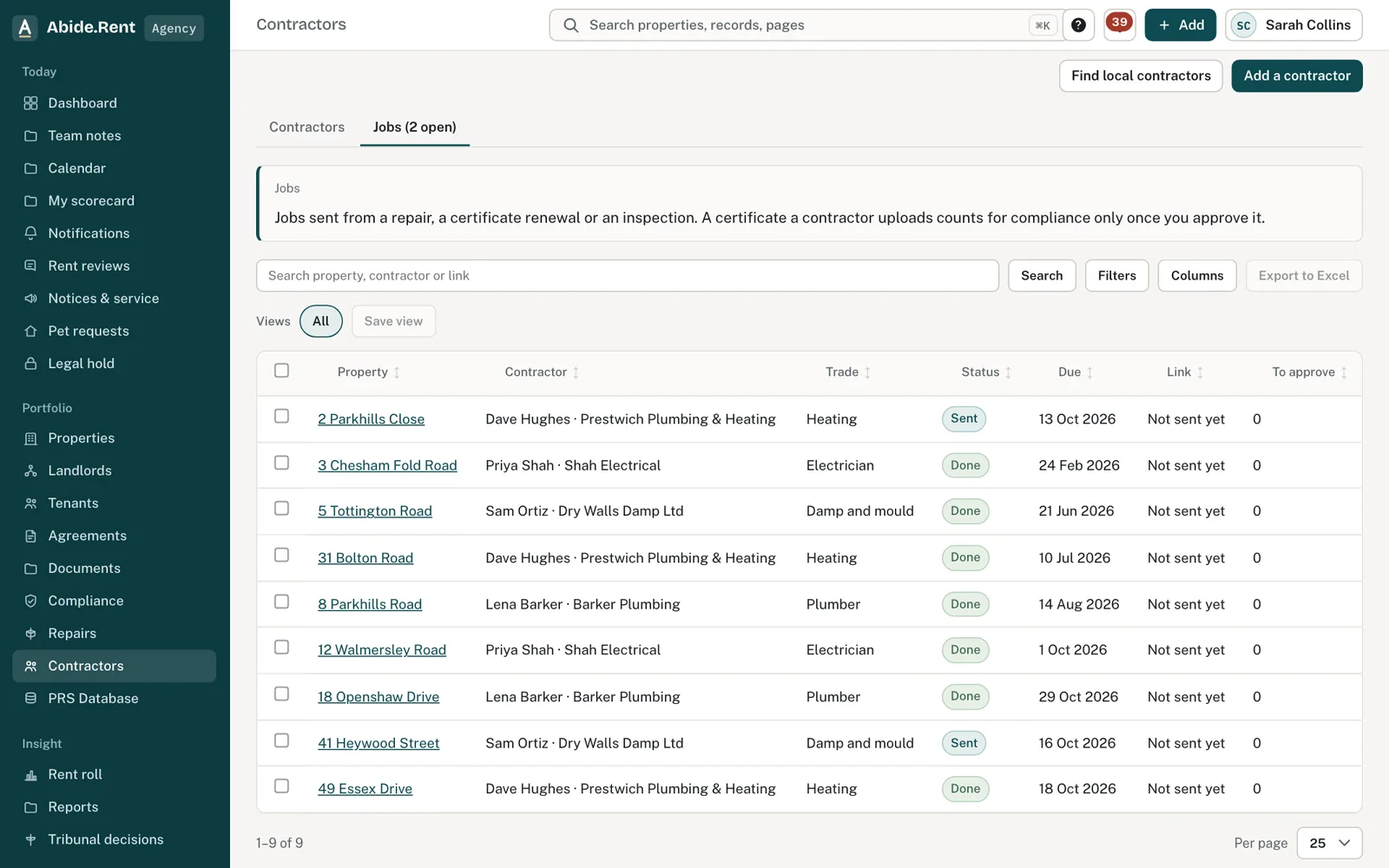
Jobs: property, contractor, status, due date, link and uploads to approve.
What you are deciding
Whether to accept what a contractor uploaded, and when to stop or replace their link.
Your options
- Approve a certificate. It is added to the property, the current certificate of that kind is replaced, and the tenant is given a copy, just as when you upload one yourself.
- Do not accept it. Say why. The contractor sees your reason on their link and can upload a corrected one.
- Stop the link. The link stops working at once. Send the job again to issue a new one; only the newest link works.
How to do it
- Open the job under Contractors, on the Jobs tab.
- Check what the contractor did: accepted, the visit date, notes, photos and certificates.
- For a certificate, check the date of the check and the expiry date, then select Approve certificate or Do not accept.
- If the link may have gone to the wrong person, select Stop the link.
What the contractor can do
From the link a contractor can accept the job, book a visit date, add a note, upload a certificate (PDF) or photos, and mark the job done. Each step is recorded on the job and you are told. Once a job is done or cancelled the link is read-only. The link ends after 30 days, and Abide.Rent stores only a fingerprint of it, never the link itself.
A worked example
On Friday 16 October 2026 Dave Hughes uploads the gas safety record for 12 Acacia Avenue through his link, with the check dated 16 October 2026 and an expiry of 15 October 2027, then marks the job done. The agency opens the job, checks the dates against the PDF and approves it. The old record, which was due to expire on 9 November 2026, is replaced, the tenant is given the new copy, and the gas safety date on the property moves to 15 October 2027.
What Abide.Rent does for you
- Keeps a draft certificate out of your compliance figures until you approve it.
- Runs the same steps on approval as an upload by your team.
- Records each contractor step with the time, and tells you.
If something goes wrong
- “This link has ended or does not exist.”
What to do: Job links expire. Send the job again from the repair. - “Photos must be 5 MB or less.”
What to do: Take a smaller photo or reduce its size. - “Say whether this is a certificate, a photo or an invoice.”
What to do: Choose what the file is. - “Say why the certificate was not accepted.”
What to do: When refusing an upload, give the reason so the contractor can fix it.
Common mistakes
- Approving a certificate without checking its dates against the PDF.
- Forwarding the link to someone else: anyone holding it can act on the job until it ends or is stopped.
What to do next
More in Compliance
 Contractors and the jobs you send themKeep your own list of contractors with their trades, areas, registrations and insurance, and send them jobs from a repair or a renewal.
 Gas safety, EICR and EPC datesRecord when each certificate expires and be reminded 30 days before. One page lists every date across your properties.
 Giving tenants the gas safety record and EICRWhen you add a new gas safety record or EICR to a let property, Abide.Rent gives the tenants a copy and asks them to confirm receipt.