Your work on the dashboard
One list on the dashboard of what needs doing now: overdue items first, then this week, pet requests, replies, signatures and approvals.
- Reviewed
- Read
- 3 min
The dashboard is the page you land on after signing in. Under the figures, Your work gathers what needs attention into one list, most urgent first.
Who this is for: letting agencies and landlords.
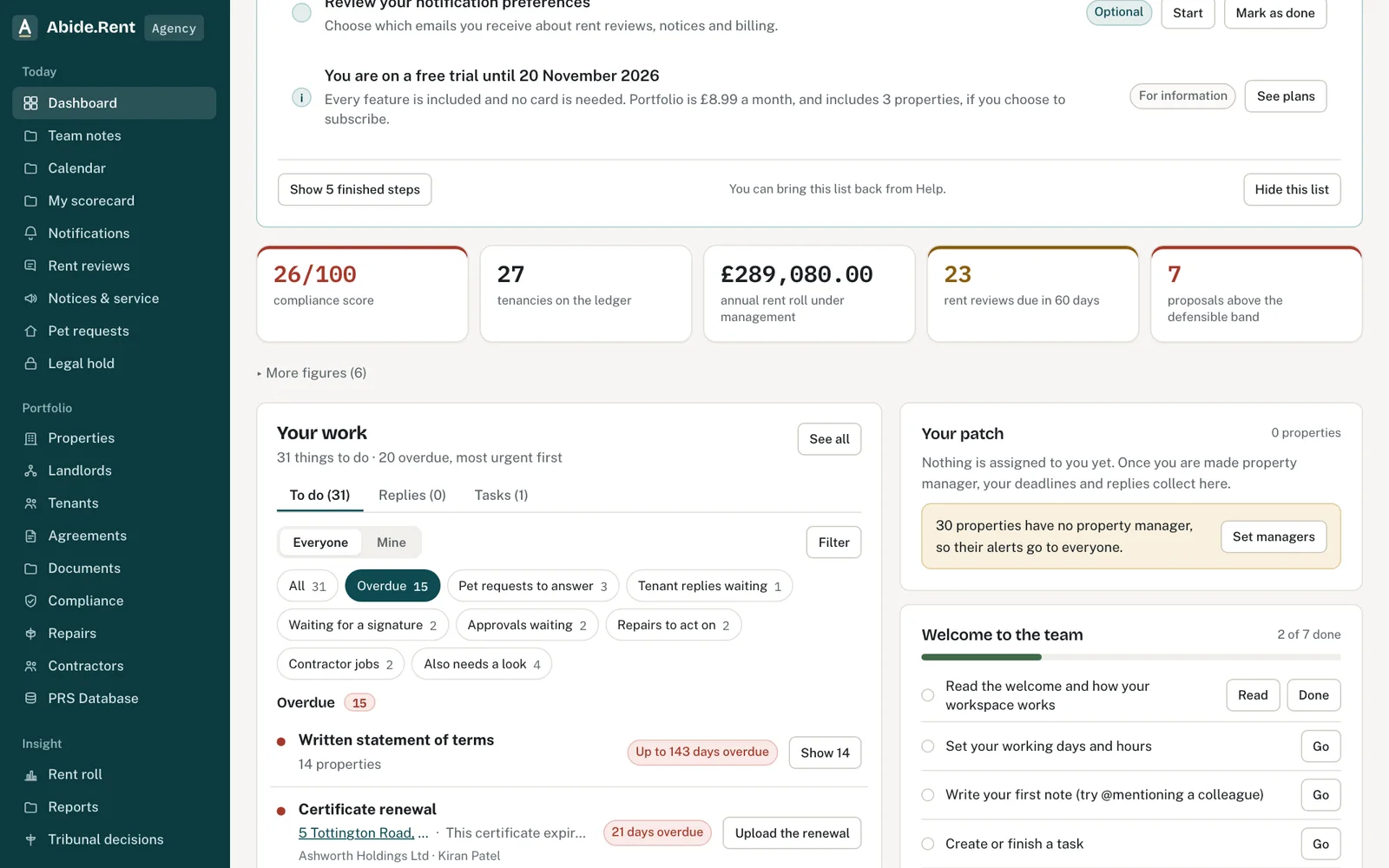
Your work filtered to overdue items.
What you are deciding
What to deal with first today, and whether to narrow the list to one person or one property.
Your options
- Work from the top. Overdue items come first, then anything due in the next seven days, then pet requests, tenants waiting on a reply, notices waiting for a signature and rent proposals waiting for approval.
- Filter by person. Shows only the rows that name that landlord or tenant, for a call or a meeting about them.
- Filter by property. Shows only one property's rows, for a visit or a conversation about that home.
- Show one heading. Select a short heading above the list, such as Pets or Overdue, to see only those rows. Select All to see everything again.
- Mine. In an agency, Mine narrows the list to the properties you look after or cover. Replies and Tasks sit beside it.
How to do it
- Open Dashboard from the menu. It is the first item, and where you land after signing in.
- Read each row: what it is, the property, why it matters and when it is due.
- Select the button on the row to open the record or start the fix.
- Select Filter to narrow the list by Person or Property. Select Clear to see it all again.
What appears, and in what order
- Overdue: certificates, deposit protection, statements of terms, Right to Rent follow-ups and PRS registration whose date has passed.
- Due this week: the same kinds of item falling due in the next seven days.
- Pet requests to answer: every open pet request, overdue or not, so a written decision is never lost among other duties.
- Tenant replies waiting: a tenant's notice to leave to confirm, and referred increases with no evidence pack yet.
- Waiting for a signature: generated notices that are not signed.
- Approvals waiting: rent proposals waiting on the landlord.
- Repairs and contractor jobs: repairs past your own response target and contractor jobs due this week, where you use them.
- Also needs a look: anything else the dashboard flags, such as a notice email that bounced.
A record is listed once, under its most urgent heading. Hover over a property to see a summary of it.
A worked example
On Tuesday 13 October 2026 an agent signs in and lands on the dashboard. The gas safety record at 12 Market Street expired on Saturday 10 October 2026, so it heads the list as 3 days overdue with an Upload the renewal button. The EICR at 4 Mill Lane is due on Friday 16 October 2026 and sits under Due this week. A pet request that must be answered by Thursday 29 October 2026 is under Pet requests to answer, and one unsigned Form 4A is under Waiting for a signature. When everything is dealt with, Your work says "You're clear".
What Abide.Rent does for you
- Builds the list from the same dates as each property's clocks, so the two always agree.
- Shows each record once, under its most urgent heading.
- Counts each heading, so you can see how much is left.
If something goes wrong
- Your work is empty but colleagues have overdue items
What to do: You are looking at Mine. Choose Everyone. - An item stays overdue after you dealt with it
What to do: Mark the underlying record done: for example set the repair to fixed or record the pet decision. The item clears from the record, not from the list. - “Choose who owns the task.”
What to do: Pick a person before saving a task.
Common mistakes
- Treating an empty list as a clean bill of health. Today shows what is recorded in Abide.Rent; a certificate never entered cannot appear.
- Working only from the figures. The tiles count things; Your work tells you which ones to open first.
What to do next
More in Getting started
 Ask the assistant about your recordsAsk a question about your properties, certificates, notices, repairs and deadlines, and get an answer that links to each record it used.
 Getting started as a landlordAdd a property you let, record its tenancy and dates, and invite your tenant. If an agent manages it, invite your agent instead.
 Getting started as a letting agencySet up your agency in the order that pays off soonest: business details, a first property, its tenancy, its dates, then your team.