Sign in and switch between views
One sign-in for everything. Agency, landlord and tenant are separate views, and one person can hold more than one.
- Reviewed
- Read
- 4 min
You sign in once. What you see next depends on the account you open: an agency, a landlord or a tenant view. Someone who is a tenant at one address and a landlord at another has both, kept apart.
Who this is for: letting agencies, landlords and tenants.
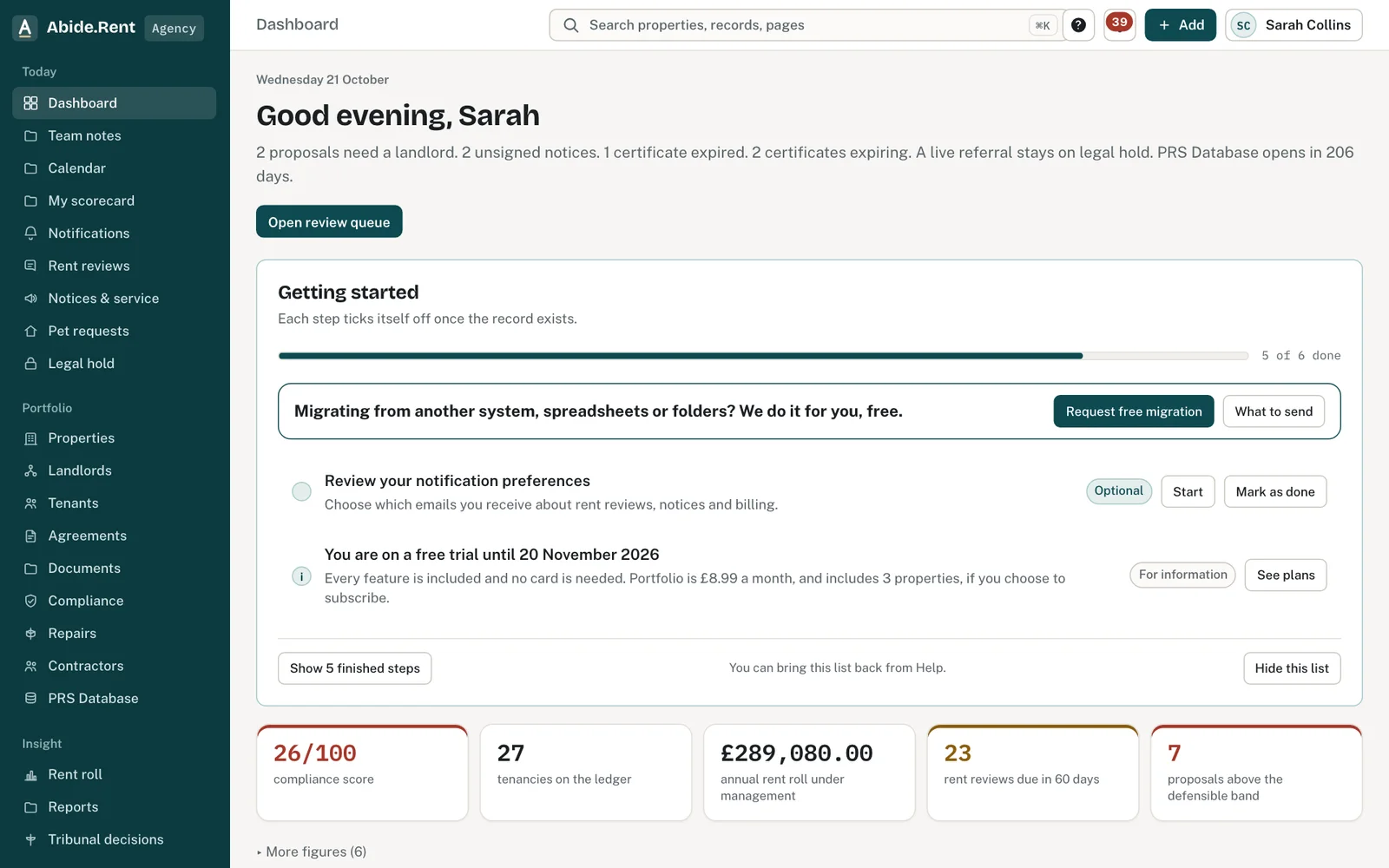
The agency view after sign-in.
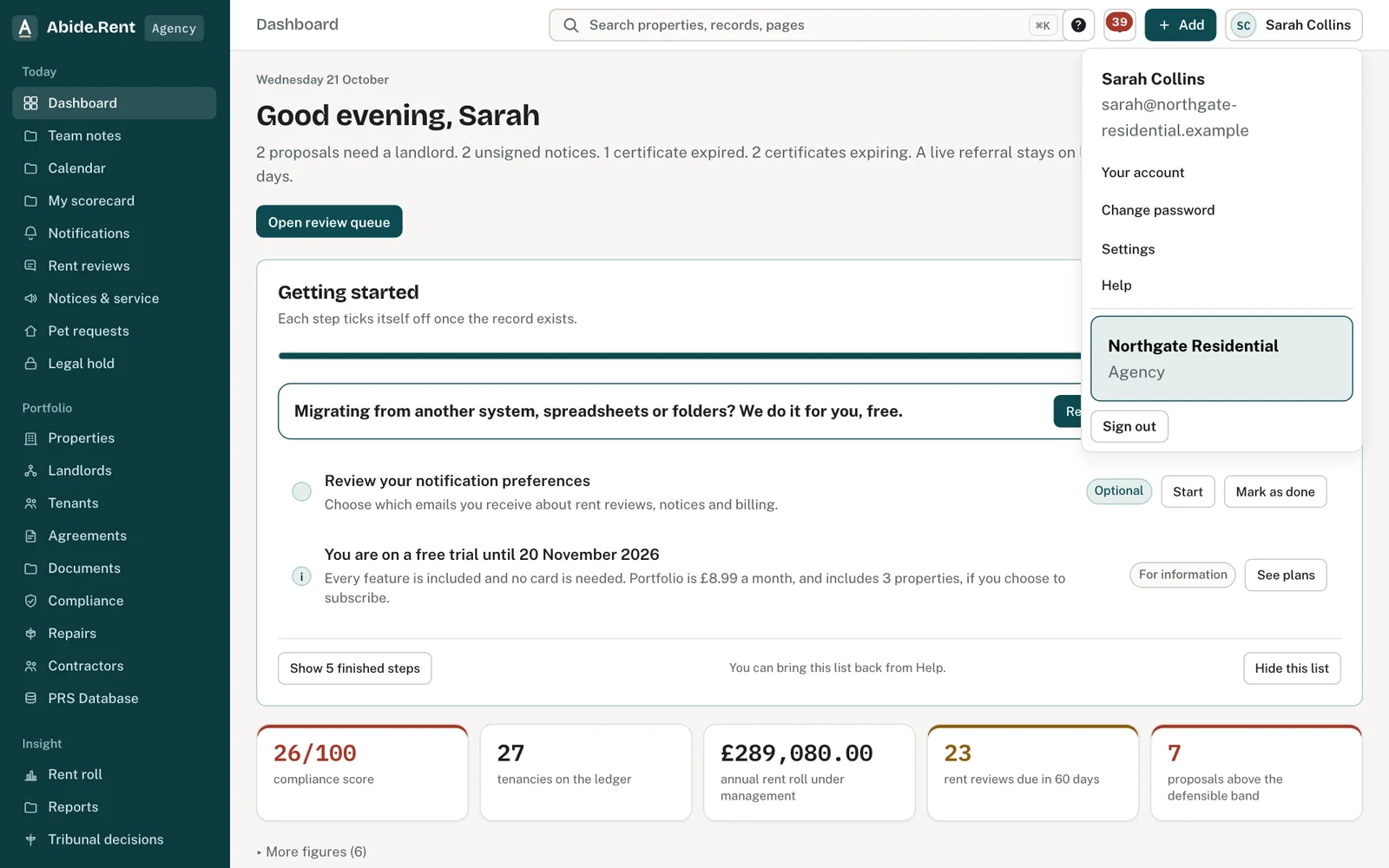
The account menu: profile, settings and other views you have.
What you are deciding
How to sign in, and which view to work in.
Your options
- Email and password. Type the email on your account and your password. If your account asks for both, a one-time code is also emailed to you.
- Email code. Choose Email code, type your email and enter the 6-digit code we send. No password is needed.
- Google. Choose Continue with Google if your Google account is connected to Abide.Rent.
- Switch view. Your name at the top right lists every account you belong to. Choose one to switch.
How to do it
- Go to the Abide.Rent sign-in page.
- Choose Password or Email code and enter the email address your account or invitation uses.
- If asked, enter the 6-digit code from the email. It is valid for a short time; ask for a new one if it has expired.
- You land on Dashboard. The menu on the left has Today, Portfolio, Insight and Setup (tenants see their home, tenancy, letters and inbox).
- To change view, select your name at the top right and choose another account.
The three views
- Agency: properties, rent reviews, notices, compliance, repairs, agreements and the team.
- Landlord: your properties, approvals, statements and the duties that stay with you.
- Tenant: your tenancies, notices and letters, repairs, your deposit and rent. Always free.
A person with two roles sees two accounts in the menu. The agency never sees a tenancy you hold elsewhere.
Password and profile
Change your password under Settings → Password. Your name and mobile number are under Settings → Profile.
A worked example
Kiran Patel rents 31 Bolton Road through Northgate Residential and owns a flat in Salford that he lets himself. On Monday 19 October 2026 he signs in with an email code, lands on his tenant view and reads a rent increase notice. He then selects his name, chooses his landlord account and records a gas safety certificate for the flat. Northgate Residential sees only his tenancy at 31 Bolton Road.
What Abide.Rent does for you
- Uses one sign-in for every role you hold.
- Keeps each account's records apart.
- Pauses password sign-in after repeated failed attempts, to protect the account.
If something goes wrong
- “That code is not right. Check the email and try again, or ask for a new code.”
What to do: Use the code from the most recent email. Older codes stop working when a new one is sent. - “That code has expired. Ask for a new one.”
What to do: Codes last a short time. Select Send a new code. - “Too many codes requested. Wait 15 minutes and try again.”
What to do: Wait 15 minutes. Check your spam folder for the codes already sent. - “That email and password do not match.”
What to do: Check the email, or use Email code instead. After five failed attempts password sign-in is paused for a while; use Forgotten your password? to reset it. - “Your session has ended. Sign in again to continue.”
What to do: Sessions end after a period of inactivity, or when you sign out elsewhere. Sign in again. - “That Google account is connected to a different Abide.Rent account”
What to do: Sign in with email instead, or disconnect Google from the other account first. - No code arrives
What to do: Check spam and any company email filter for messages from Abide.Rent. If nothing after two tries, open a ticket from another colleague's account or email us.
Common mistakes
- Signing in with a different email from the one the invitation was sent to: the account will not be there.
- Asking for several codes in a row. Use the most recent email; older codes stop working.
- Looking for a landlord's records in the tenant view. Switch account from your name at the top right.
What to do next
More in Getting started
 Getting started as a landlordAdd a property you let, record its tenancy and dates, and invite your tenant. If an agent manages it, invite your agent instead.
 Getting started as a letting agencySet up your agency in the order that pays off soonest: business details, a first property, its tenancy, its dates, then your team.
 Getting started as a tenantYour portal is free. It shows your tenancy, every notice you are sent and the dates that matter, and lets you reply.