Your business details and where they appear
Your trading and legal names, registered address, company number and redress scheme appear on notices, emails, invoices and your tenants' portal.
- Reviewed
- Read
- 3 min
Business details say who your agency is. A landlord who lets through a company can add the company's details too.
Who this is for: letting agencies and landlords.
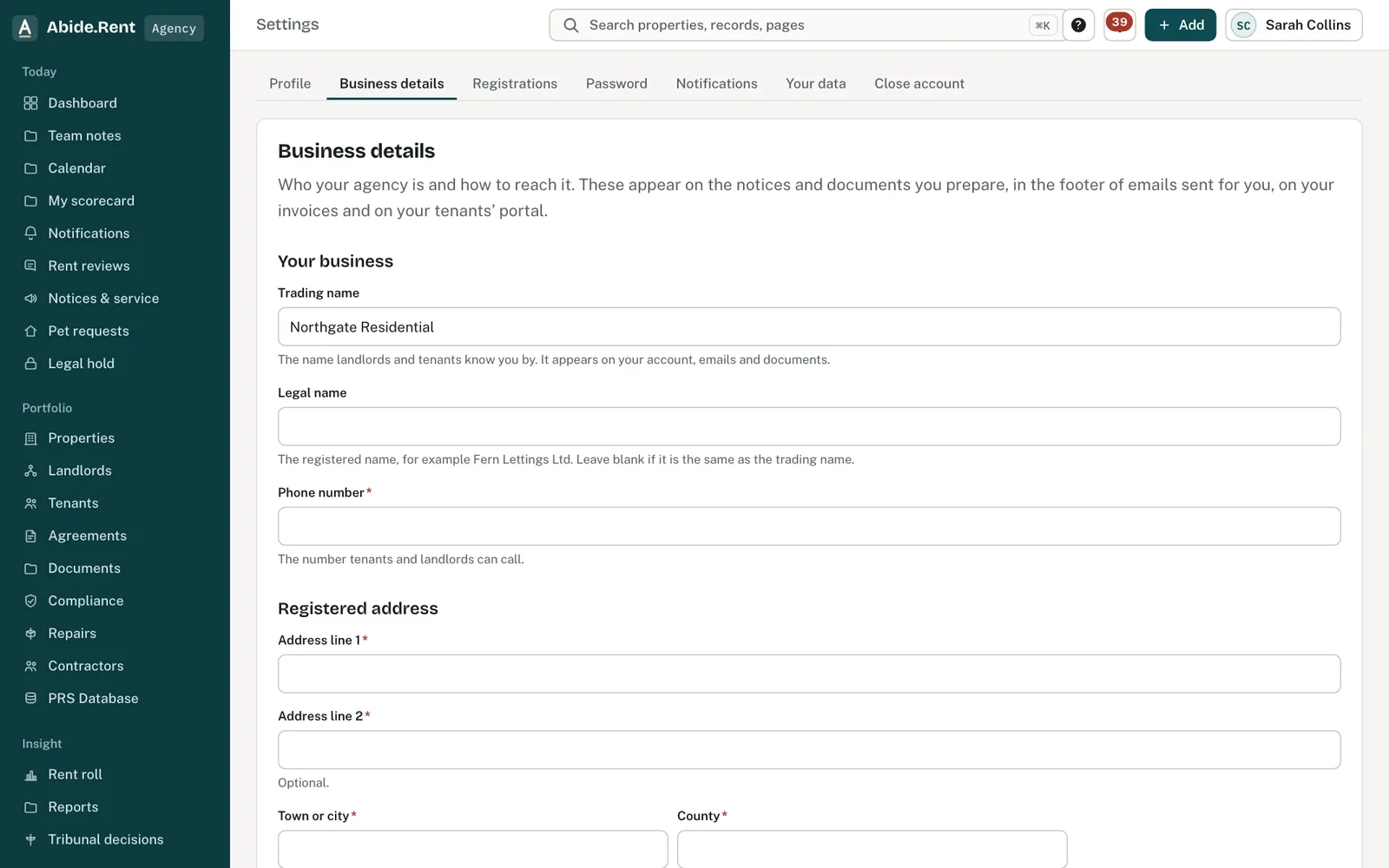
Business details: trading and legal name, address, company number and redress scheme.
What you are deciding
Which details to give now, and which to add later.
Your options
- The essentials. A legal or trading name, your registered address and a phone number. This is all the set-up steps ask for.
- Company and VAT numbers. Your company number appears with your address at the foot of documents. Your VAT number appears on what you are billed.
- Redress scheme and client money protection. Tenants see your redress scheme on their portal. Choose Not a member yet if that is the position today.
- A logo. Optional. A PNG, JPEG or SVG of 1 MB or less.
How to do it
- Open Settings, then Business details.
- Enter your trading name, and your legal name if it is different.
- Enter your registered address and a phone number.
- Add your company number, VAT number, trading address, contact email for tenants, website and redress scheme if you have them.
- Select Save business details.
A worked example
Fern Lettings Ltd trades as Fern Lettings from 1 High Street, Leeds, LS1 1AA, with company number 01234567. Its owner saves these details on Thursday 1 October 2026. From then on, a rent increase notice the agency prepares shows "Fern Lettings Ltd, 1 High Street, Leeds, LS1 1AA. Company number 01234567." at the foot of each page, emails to tenants end "Sent on behalf of Fern Lettings, 1 High Street, Leeds, LS1 1AA.", and the tenant's portal shows the agency's phone number and redress scheme on the Your agent card.
What Abide.Rent does for you
- Checks the format of a company number (8 digits, or 2 letters and 6 digits), a VAT number (GB and 9 or 12 digits) and each postcode before saving.
- Uses the same details everywhere: documents, email footers, invoices and the tenant portal.
- Lets only the account owner change them; every colleague can read them.
If something goes wrong
- Your details do not appear on a notice
What to do: Only details saved under Settings → Business details are used, and only on documents generated after you save. Regenerate a draft; a served notice keeps what it was served with. - “Enter the business’s legal name or its trading name.”
What to do: Fill in at least one of the two names, then save. - “That file is too large. The limit is 1 MB.”
What to do: Upload a smaller logo (PNG or JPEG, under 1 MB).
Common mistakes
- Entering the trading name as the legal name. Documents show the legal name beside the registered address.
- Leaving the contact email blank and expecting tenants to reach a shared inbox. Without it they see the account owner's email.
- Typing a company number without its leading noughts. It is always eight characters.
What to do next
More in Getting started
 Getting started as a landlordAdd a property you let, record its tenancy and dates, and invite your tenant. If an agent manages it, invite your agent instead.
 Getting started as a letting agencySet up your agency in the order that pays off soonest: business details, a first property, its tenancy, its dates, then your team.
 Getting started as a tenantYour portal is free. It shows your tenancy, every notice you are sent and the dates that matter, and lets you reply.