The dashboard
The dashboard is what needs doing: today's work, the compliance score, figures that open the list behind them, and what is waiting on other people.
- Reviewed
- Read
- 2 min
The dashboard is the first page after you sign in. It tells you what needs a person today and links straight to each record.
Who this is for: letting agencies and landlords.
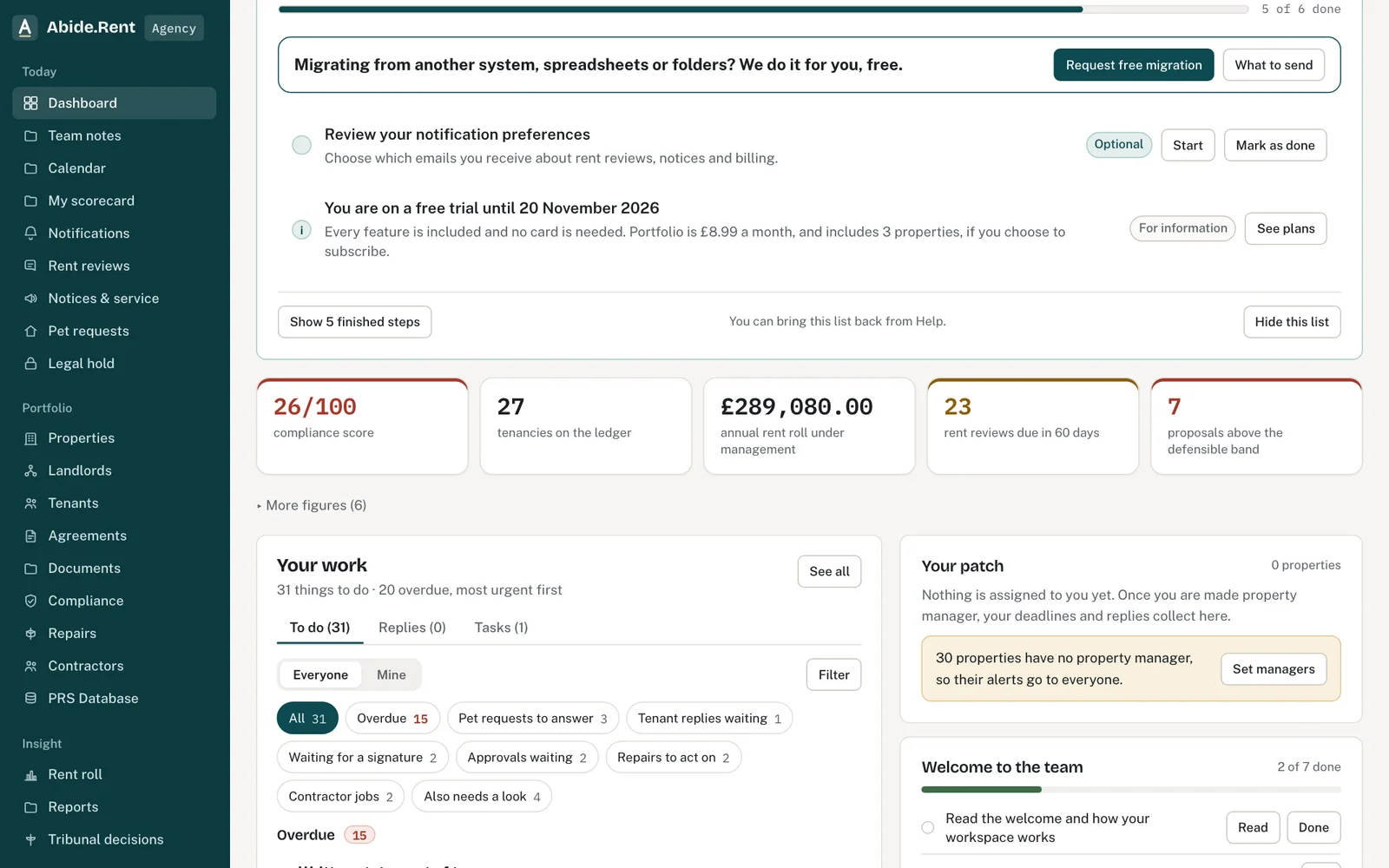
Each figure opens the list behind it.
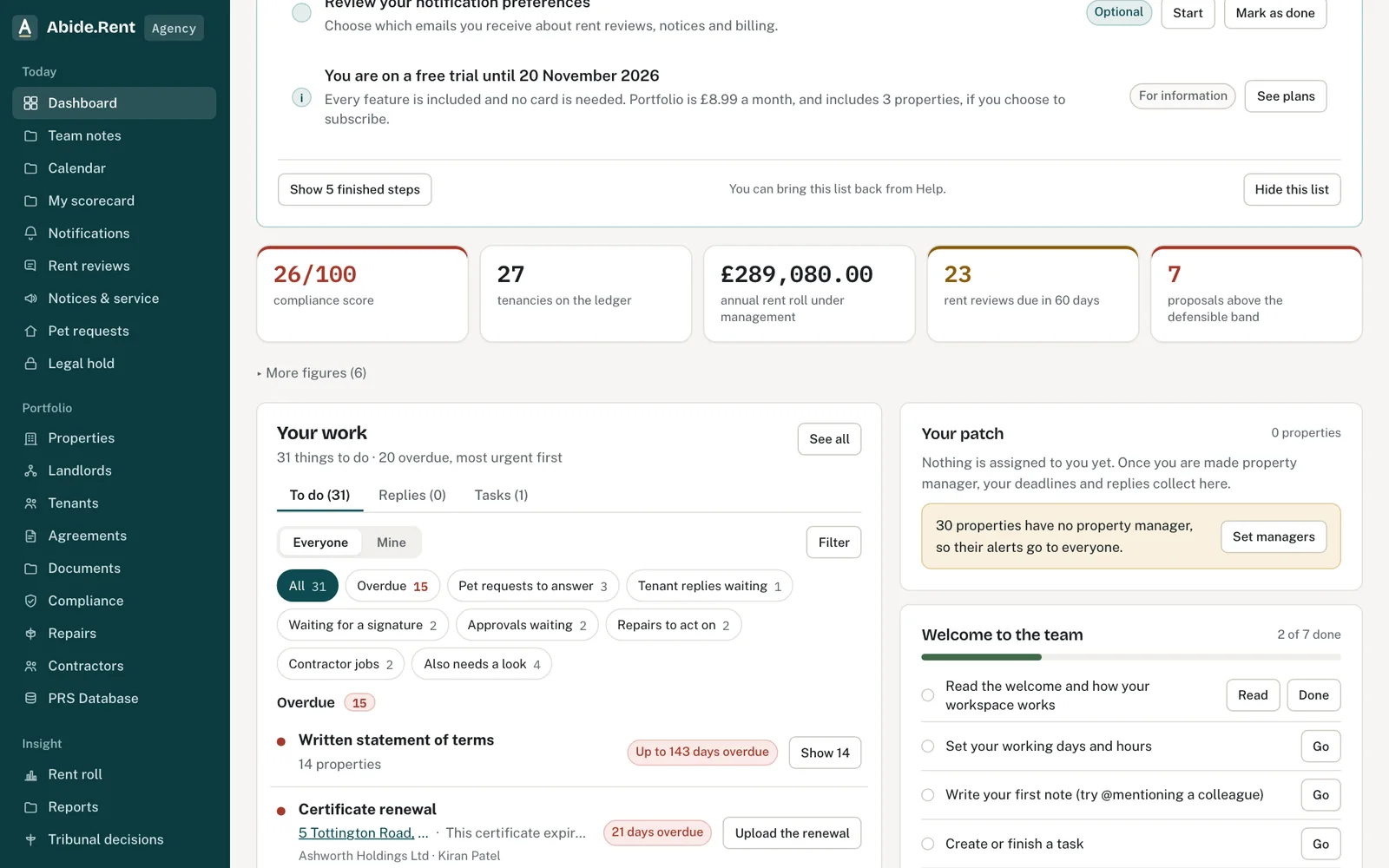
Your work: overdue items, pet requests, replies, signatures and approvals.
What you are deciding
What to work on first.
Your options
- Start from the summary line. The sentence under the greeting counts what needs attention: proposals waiting for a landlord, unsigned notices, expired certificates, live referrals.
- Start from a figure. Each figure (compliance score, tenancies, rent roll, reviews due, proposals above the band) opens the list behind it.
- Start from Your work. Everything due, most urgent first, grouped into overdue, pet requests, replies, signatures, approvals, repairs and contractor jobs.
How to do it
- Open Dashboard from the menu.
- Read the summary line under the greeting. Select Open review queue if proposals are waiting.
- Select a figure to open the list behind it, for example certificates expiring.
- Scroll to Your work. Select a heading such as Overdue or Pets to see one kind of work, and Mine or Everyone to change whose work you see.
- Work through the Getting started list until it ticks itself off, then hide it.
Getting started list
New accounts see a short list of first steps. Each one ticks itself off when the record exists; you cannot tick it by hand. Hide it when you are done; bring it back from Help.
Your patch
Your patch shows the properties you look after. If nobody is set as property manager, alerts go to everyone; set managers from the Team page.
A worked example
On Monday 19 October 2026 Sarah Collins opens the dashboard: "2 proposals need a landlord. 2 unsigned notices. 1 certificate expired." She selects 1 certificates expired, sees the gas safety record at 5 Tottington Road expired on 25 September 2026 and books an engineer. In Your work she selects Overdue and clears three pet requests before lunch.
What Abide.Rent does for you
- Counts what needs a person and links each item to its record.
- Orders your work by urgency.
- Shows each figure as a link to the filtered list behind it.
If something goes wrong
- A figure shows a number but the list behind it is empty
What to do: The list may be filtered to your work only. Choose Everyone, or clear the filter. - Every alert goes to everyone
What to do: No property manager is set. Open Team and give each property a manager. - The Getting started list has gone
What to do: You hid it. Bring it back from Help.
Common mistakes
- Treating an empty Your work list as no history: the records are all still there.
- Leaving properties without a manager, so every alert goes to everyone.
What to do next
More in Getting started
 Ask the assistant about your recordsAsk a question about your properties, certificates, notices, repairs and deadlines, and get an answer that links to each record it used.
 Getting started as a landlordAdd a property you let, record its tenancy and dates, and invite your tenant. If an agent manages it, invite your agent instead.
 Getting started as a letting agencySet up your agency in the order that pays off soonest: business details, a first property, its tenancy, its dates, then your team.