Portfolio is charged for the number of properties your subscription is licensed for: at least the 3 included, and at least the properties on your working list. Abide.Rent is sold to businesses only, and no VAT is charged.
Who this is for: letting agencies and landlords.
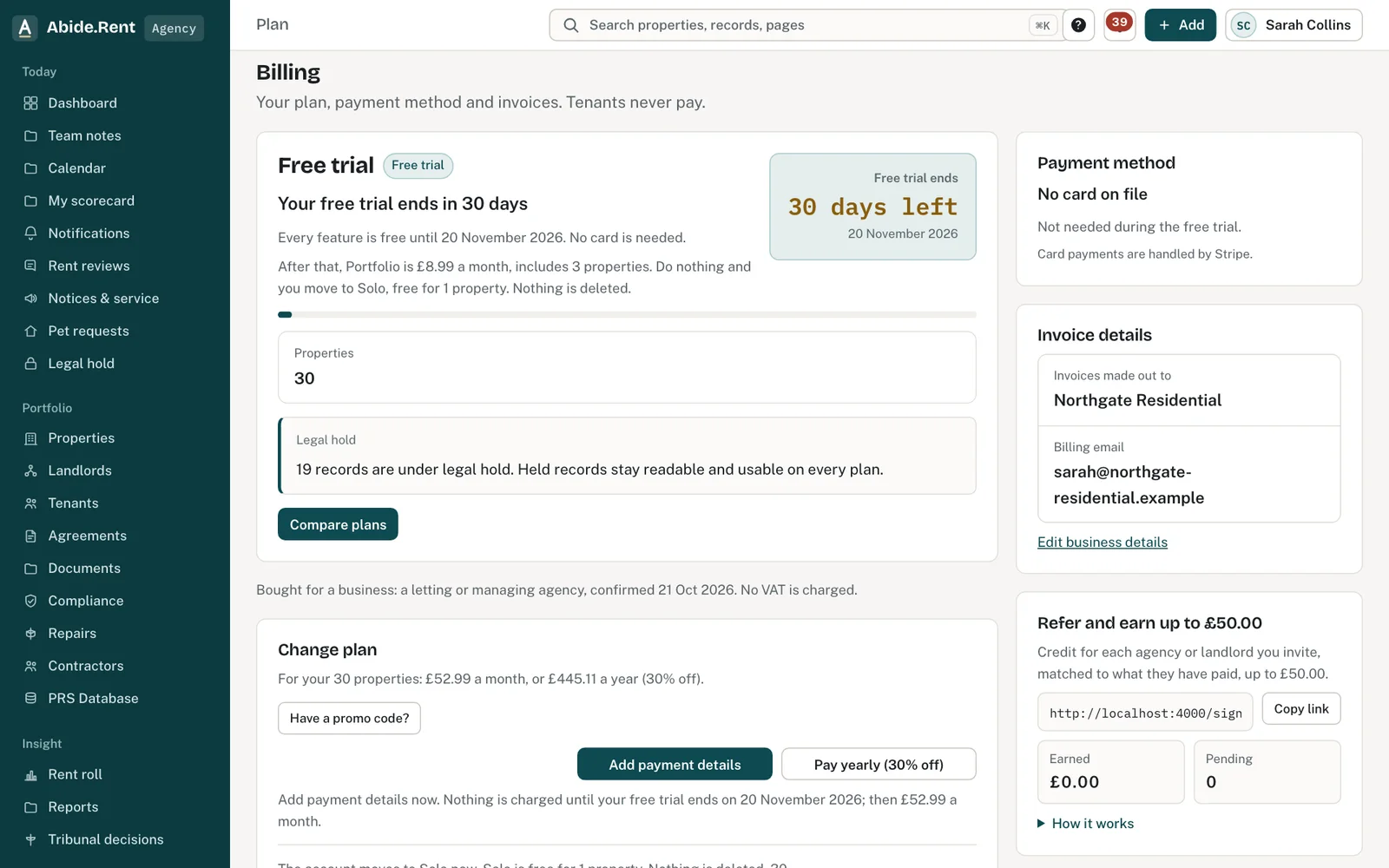
Billing: the plan, the next charge, invoices and the payment method.
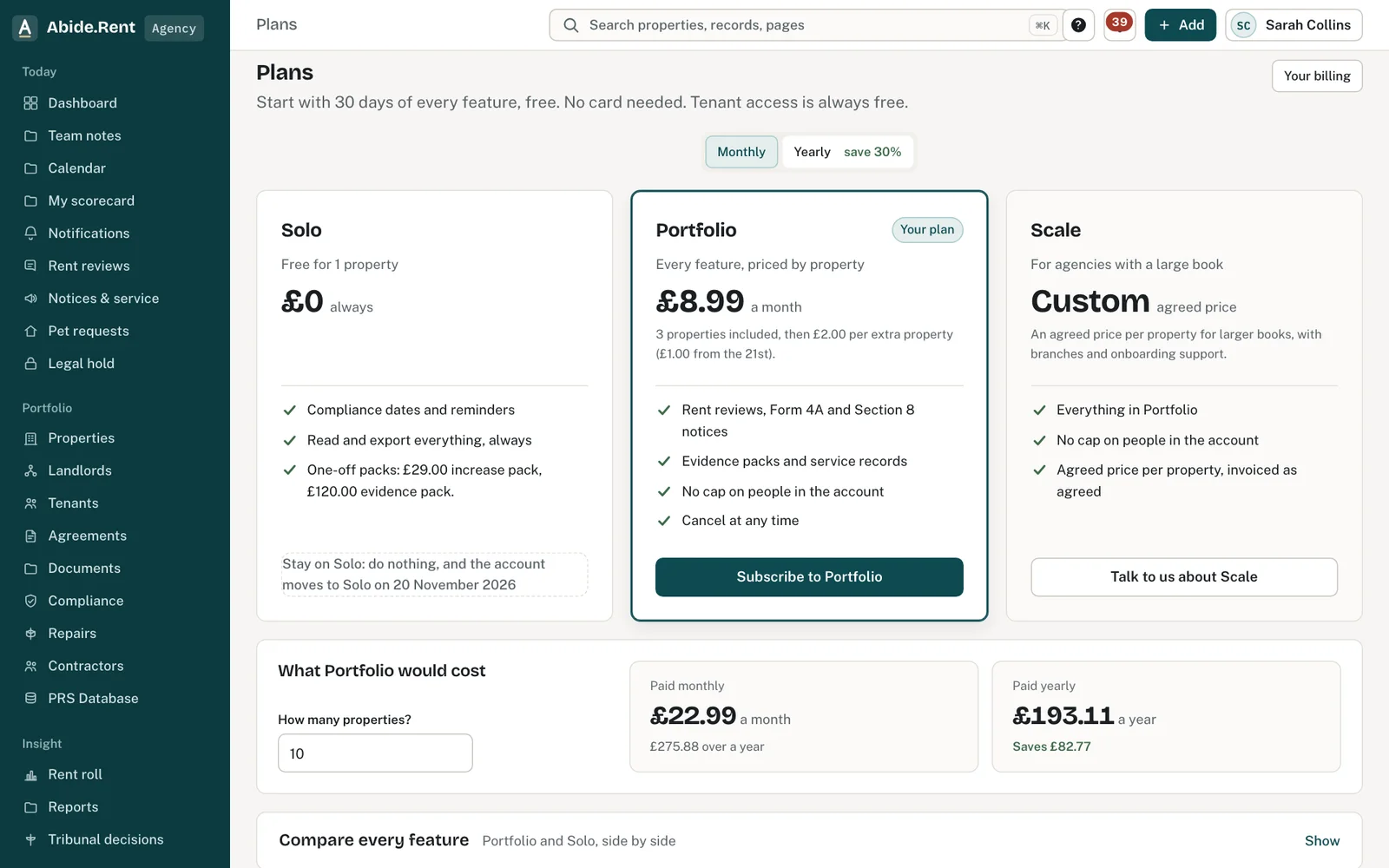
Plans and what Portfolio would cost.
What you are deciding
Whether to pay monthly or yearly, and who in your business looks after the card and the invoices.
Your options
- Pay monthly. £8.99 a month, includes 3 properties. The charge changes only when you change the licence.
- Pay yearly. £75.51 a year for the first 3 properties, 30% less. Properties added to the licence part-way through are charged for the rest of the year only.
- Stay on Solo. Free for 1 property. You can read and export everything you have recorded.
How to do it
- Open the plan page.
- Before your first payment, under Before you pay, say what kind of business the account is for and give one reference: a VAT number, a company number, or a reference such as your PRS Database or deposit scheme number. This is asked once.
- Choose monthly or yearly and select the button to subscribe.
- Enter your card details on the secure payment page. Abide.Rent does not see or store your card number.
- To add a property beyond your licence, raise the licence on the plan page first. During the free trial this costs nothing.
- Find each invoice under Invoices, where it can be downloaded.
What you are charged for
- The number of properties your subscription is licensed for. £8.99 a month, includes 3 properties. Then £2.00 per extra property.
- Starting or ending a tenancy does not change the charge. Changing the licence does.
- Rent reviews, notices and evidence packs are included on Portfolio.
- On Solo, a one-off pack is £29.00 for a rent increase notice or £120.00 for an evidence pack.
If a payment fails
You are told by email and on the plan page. You have 14 days to update your card. If the payment is still unpaid after that, your account moves to Solo. Nothing is deleted.
VAT
Abide.Rent is sold to businesses only, and no VAT is charged. A business registered for UK VAT accounts for it under the reverse charge. Your receipts and invoices say so.
Who pays
The account that added a property pays for it. A landlord or an agent you invite to a property you already pay for is not charged for it.
A worked example
An agency on Portfolio is licensed for 60 properties and pays £82.99 a month. In November it wants to take on five more, so it raises the licence to 65 on the plan page; from then the monthly charge is £87.99. Its invoices are billed to the legal name and registered address in its business details. A card payment fails on Monday 2 November 2026; the agency has 14 days, to Monday 16 November 2026, to update the card before the account moves to Solo.
What Abide.Rent does for you
- Charges for the licence you set, never for how many tenancies are running.
- Asks once, before the first payment, what kind of business the account is for.
- Shows who each invoice is billed to (your legal name, registered address and VAT number) from your business details.
- Tells you by email and on the plan page if a payment fails, and keeps Portfolio on while you fix it.
If something goes wrong
- “That promo code is not recognised. Check the spelling and try again.”
What to do: Check the code. - “Promo codes apply to Portfolio, not to one-off packs.”
What to do: Use the code when subscribing to Portfolio. - “The card was declined. Update the card from billing and try again.”
What to do: Update the payment method under Billing. - “Abide.Rent is sold to businesses only. Confirm your business details under Before you pay, then try again.”
What to do: Fill in Before you pay on the plan page: what kind of business the account is for and one reference. It is asked once. - “This workspace is licensed for … properties. Raise your licence on the billing page to add more properties.”
What to do: Raise the licence on the plan page, then add the property. During the free trial this costs nothing.
Common mistakes
- Letting only one person hold the billing seat. Give the accounts seat to whoever pays the invoices.
- Adding a property beyond the licence. Raise the licence first, then add it.
- Ignoring a failed-payment email. Nothing is deleted, but new reviews and notices stop after the grace period.
What to do next
More in Billing
 Choosing between Portfolio, Solo and a one-off packPortfolio suits anyone who reviews rents or serves notices. Solo is free for 1 property. It suits small portfolios that only keep records. A pack covers one notice.
 Your free trial and what happens after itFree trial — 30 days, unlimited properties, every feature, no card needed. Nothing is deleted when it ends.
 Do I pay again for a notice on Portfolio?No. On Portfolio, rent reviews, notices and evidence packs are included.