Abide.Rent generates two kinds of notice: a Section 13 rent increase notice on Form 4A, and a Section 8 possession notice.
Who this is for: letting agencies and landlords.
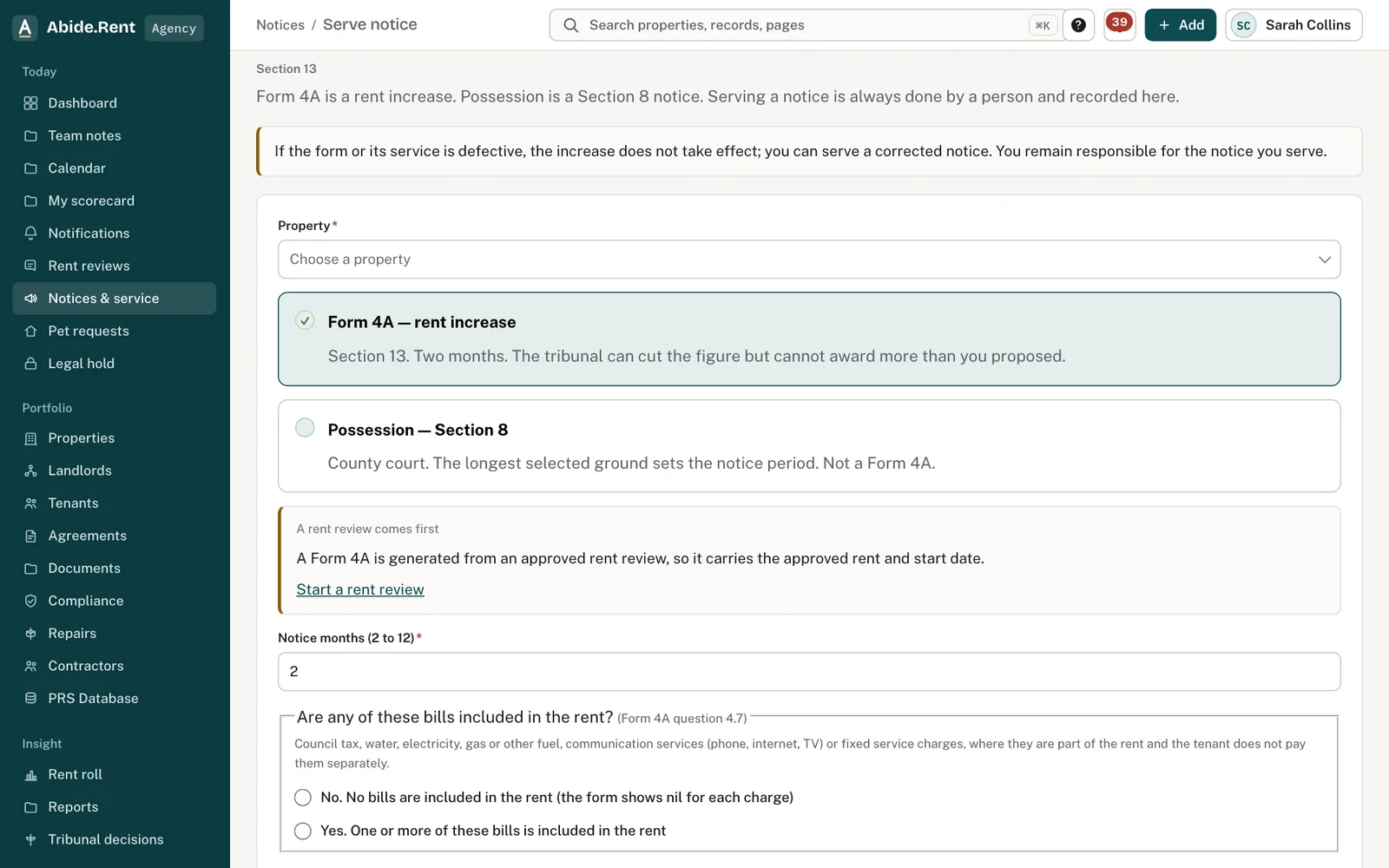
Serve notice: choose the property and the kind of notice.
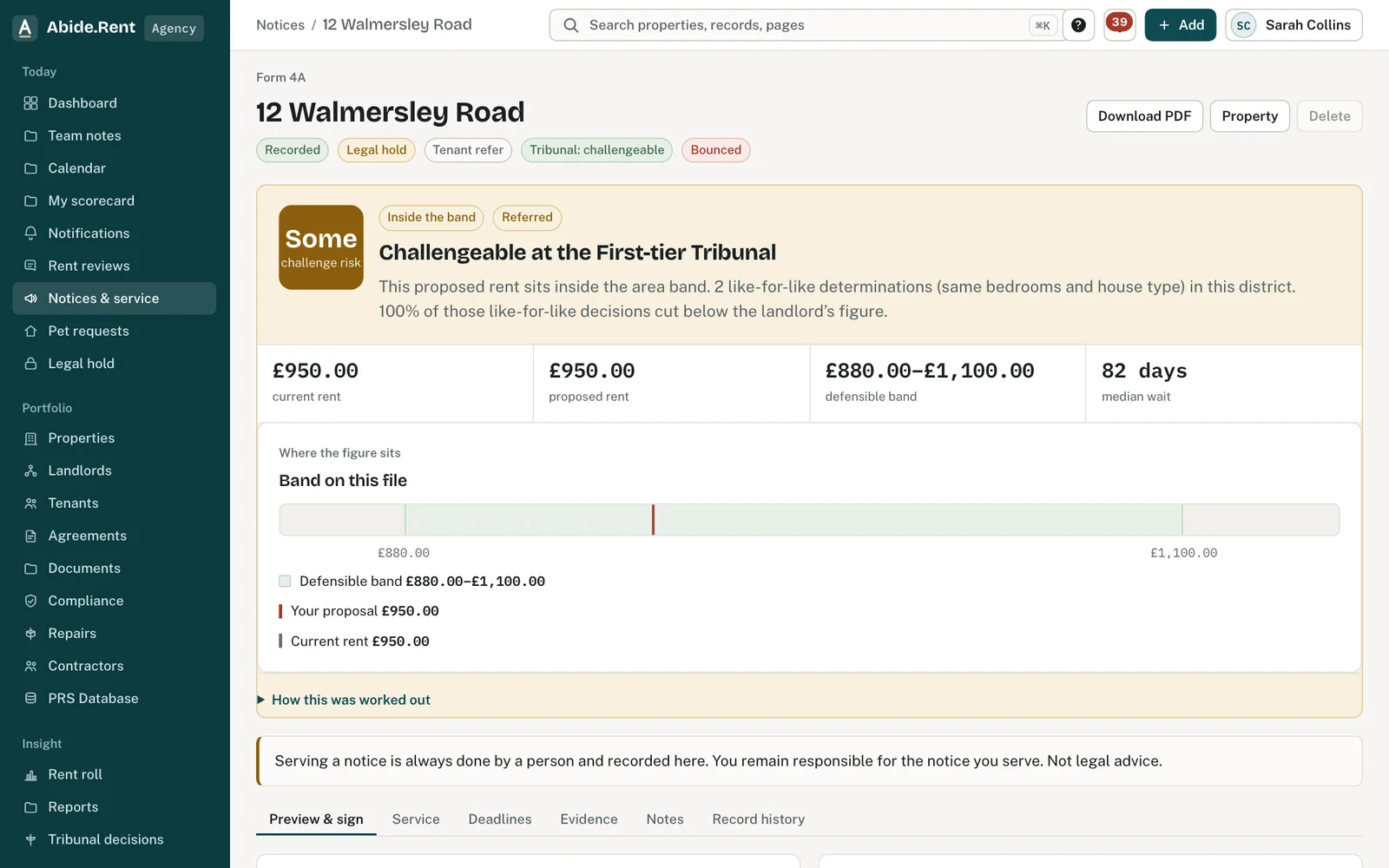
A Form 4A ready to preview and sign, with the evidence behind it.
What you are deciding
Which notice you need, who signs it and how it will be served.
Your options
- A rent increase notice (Form 4A). Generated from an approved rent review, with the approved rent and start date.
- A possession notice (Section 8). You choose the grounds. The notice period is worked out from them.
- Who signs and serves. The person signing types their name. Serving needs an owner, or a manager who may serve.
How to do it
- Select Add at the top of any page, then Serve notice. You can also start from a property, or from an approved rent review.
- Choose the property. The list opens on your properties; type an address or postcode to narrow it.
- Choose the kind of notice. For a possession notice, choose the grounds you are relying on.
- Check the dates Abide.Rent has worked out. If a date does not pass its checks you are told which one and why.
- For a rent increase, fill in any bills included in the rent (question 4.7). For a possession notice, explain why each ground applies (question 4.3).
- Tick the box to confirm you have checked the answers, then generate the notice. Abide.Rent fills in the official GOV.UK form itself: Form 4A for a rent increase, Form 3A for possession.
- Open the notice, read the preview from start to finish and type your name to sign it.
- Serve it yourself, then record how it was served.
A worked example
On Monday 2 November 2026 a negotiator generates Form 4A for 12 Market Street from a review the landlord approved: £1,250.00 to £1,325.00 a month, starting Monday 1 February 2027. Her manager reads the official Form 4A with the answers filled in and signs it. He posts it first class that afternoon and records service: posted 2 November, counted as served Wednesday 4 November 2026. The tenant can now open the notice in her portal. The notice is the official GOV.UK Form 4A (version 05.26) with the answers typed into its boxes; its wording is GOV.UK's, unchanged.
What Abide.Rent does for you
- Fills the notice from the property, the tenancy and the approved review.
- Checks the dates before the notice is generated.
- Keeps a draft out of the tenant's sight until service is recorded.
- Keeps a served notice exactly as it was served.
If something goes wrong
- “Add a named tenant to this tenancy before generating a notice.”
What to do: Add the tenants on the property's People tab. - “Add the landlord to this property before generating a notice.”
What to do: Add the landlord on the property. - “Add the landlord's address for service … before generating Form 4A.”
What to do: Record the landlord's address for notices (England or Wales). - “Enter the amount of each bill or charge included in the rent, or answer that no bills are included.”
What to do: Answer question 4.7 on the form. - “Confirm you have checked the prescribed form before signing”
What to do: Tick the confirmation, then sign. - “A served notice cannot be deleted” / “A legal hold prevents delete”
What to do: That is deliberate. Record that a defective notice did not take effect instead.
Common mistakes
- Not reading the answers on the form before signing. The wording is GOV.UK's; the answers are yours.
- Generating from an agent's account for a let-only property. The landlord gives notices for it from their own Abide.Rent account, unless the agreement records the landlord's written authority for the agency to serve.
- Deleting a draft you meant to keep. A draft can be deleted; a served notice cannot.
What to do next
More in Notices
 Following a tribunal referralFrom the tenant's application to the decision: record the directions, prepare and send your statement, and keep track of an inspection or hearing.
 Section 13 rent increase notices (Form 4A)Form 4A is the notice used to propose a new rent. Abide.Rent generates it from an approved rent review and checks the dates first.
 Why is my notice date being rejected?Abide.Rent checks the start date of a new rent three ways. Here is what each message means and how to fix it.