Notes and @mentions on any record
Write a note on a property, notice, rent review, agreement, landlord or tenant, and type @ to tell a colleague or the landlord.
- Reviewed
- Read
- 3 min
Most records have a Notes tab beside Record history: notices, rent reviews, pet requests, repairs, contractor jobs, agreements, invoices, landlords and tenants. A property has its own Notes section, which also shows the notes on its records. Team notes in the menu lists every note you can see.
Who this is for: letting agencies and landlords.
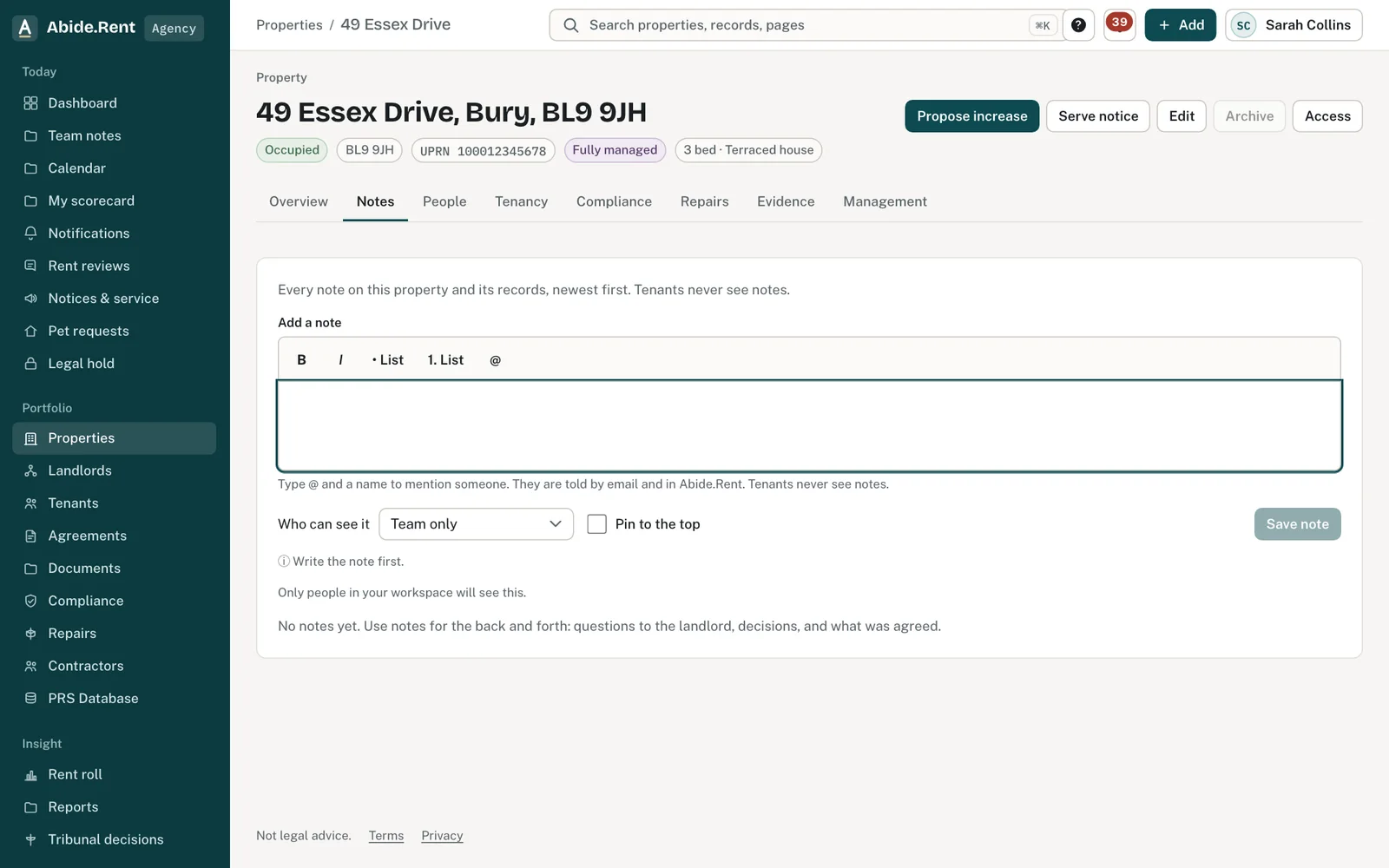
Notes: formatting, @mentions, who can see it and pin to the top.
What you are deciding
Who should see the note, and whether anyone needs to be told about it now.
Your options
- Your team only. Only your own team can read it. Notes on an agreement, invoice, landlord or tenant are always for your team only.
- Your team and the landlord. On a property's records, an agency can share a note with the landlord, and a landlord can share one with their agent.
- Mention someone. Type @ and pick a name. They get an email and a notification that opens the record the note is on.
How to do it
- Open the record and select Notes.
- Write the note. Use B, I and the list buttons for bold, italic and lists.
- Type @ and the first letters of a name, then pick from the list with the arrow keys and Enter. Property manager tells whoever looks after the property.
- Under the box, Will notify shows who will be told.
- Choose who can see it, if you are offered the choice, and select Save note.
Who you can mention
Only people who can read the note. In a note for your team, that is your colleagues (and, where you have branches, the ones who cover this property). In a note shared with the landlord, the landlord's people too.
Changing or removing a note
You can change your own note for 15 minutes after writing it; the earlier wording is kept. The author, an owner or a manager can remove a note with a reason. The words go, but the fact that a note existed, who wrote it and why it was removed stay on record.
Tenants
Tenants never see notes, on any record.
A worked example
On Wednesday 14 October 2026 a negotiator opens a rent review for 49 Essex Drive, selects Notes and writes "Comparables support the proposed rent, @Property manager please check before Friday". Ellis, the property manager, gets an email and a notification. Selecting it opens the review's Notes tab, where Ellis replies.
What Abide.Rent does for you
- Tells each person you mention, by email and in Abide.Rent, with a link to the record.
- Keeps every version of an edited note and a record of removed ones.
- Warns you before saving something that looks like a password, door code or card number.
If something goes wrong
- “Only the author can change a note, and only for 15 minutes after writing it.”
What to do: Write a new note to correct an older one. - “Notes cannot be added to this kind of record.”
What to do: Add the note to the property or the record it belongs to. - “Only the agency managing this property can share notes with its landlord.”
What to do: Choose Team only, or ask the managing agency.
Common mistakes
- Putting a key-safe code or alarm code in a note. Notes are not a safe place for those.
- Expecting a tenant to see a note. Write to the tenant from the record itself instead.
What to do next
More in People and access
 Invite a landlord, a tenant or a colleagueSend an email invitation so a landlord, tenant or colleague can sign in and see the records that concern them.
 What your landlord sees: the activity feedA landlord's home page lists what was done on their properties in the last 30 days, and by whom: notices, safety records, deposits, repairs, inspections and registrations.
 Who can see whatAn agency sees the properties it manages, a landlord sees their own, and a tenant sees their own tenancy. Each page shows who has access.