HelpHelpChanging agent and leaving
Export your file
Download a copy of your records at any time, on any plan, including Solo.
- Reviewed
- Read
- 1 min
Export builds a file of your records in the background. Download it from the list when it is ready.
Who this is for: letting agencies and landlords.
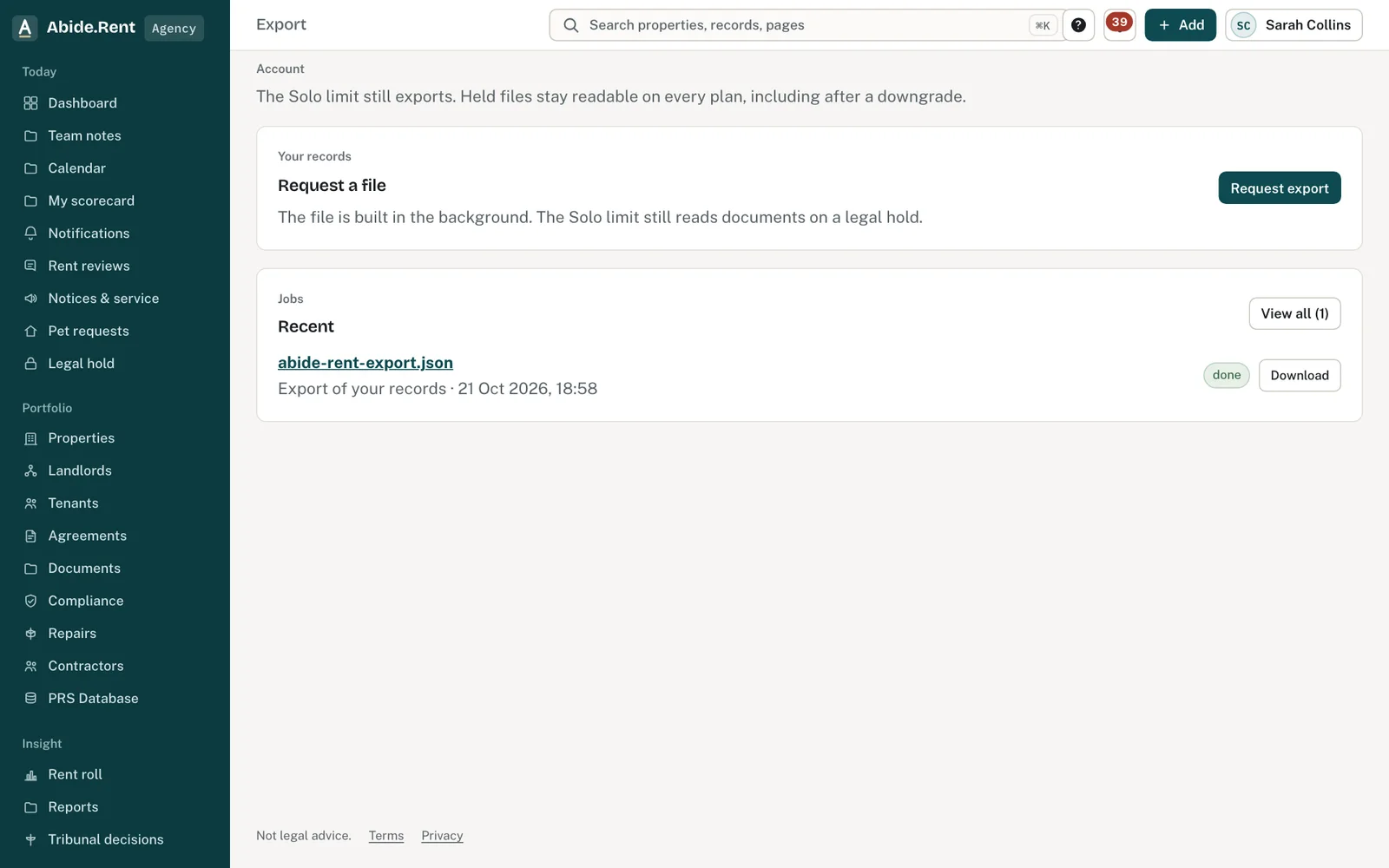
Export: request a file and download it from Recent.
What you are deciding
Whether you need the whole account, or one list.
Your options
- Whole account. Export → Request export builds a file of every record.
- One list. Most lists have Export to Excel for what you see.
- Leaving. Export first, then close the account.
How to do it
- Open Account → Export in the menu (landlords: Records → Export).
- Select Request export.
- Wait until the job shows done under Recent.
- Select Download.
A worked example
On Friday 30 October 2026 the owner of Northgate Residential requests an export before a board meeting. Four minutes later abide-rent-export.json shows done under Recent and she downloads it. The file holds all 31 properties, their tenancies, certificates and notices, including two files under legal hold.
What Abide.Rent does for you
- Exports on every plan.
- Includes held files.
- Keeps a list of past exports.
If something goes wrong
- “Only a queued job can be cancelled.”
What to do: A running export finishes; download it and delete the file if not needed. - “No file on this job”
What to do: The export failed or expired. Request a new one.
Common mistakes
- Cancelling a queued export by mistake; only a queued job can be cancelled.
What to do next
Keep reading
All help articlesMore in Changing agent and leaving
 Continuity offers: when an account closes or moves to SoloIf the account that holds a property closes or drops to Solo, an agency working on that property is offered the record so nothing is stranded.
 Exporting your records and leaving Abide.RentExport everything at any time, on any plan. If you leave, landlords and tenants keep their own copies of what was issued.
 Changing agent: handing a property overA change of managing agent is an offer the new agency accepts. The property, its rent history and every issued notice move together.