Connect Claude, ChatGPT or Cursor (MCP)
Let an AI assistant work in one Abide.Rent account with your permissions: read only, or read and make changes. You sign in and choose; remove it any time. Serving a notice is never a tool.
- Reviewed
- Read
- 4 min
Abide.Rent has an MCP server, so an AI assistant such as Claude, ChatGPT or Cursor can work from your records: which gas safety records expire this month, who is in arrears, when a pet decision is due — and, if you allow it, log the repair, chase the certificate or add the task. It works in one account, as you, with your permissions. Agency and landlord accounts need Portfolio or the free trial to connect one; tenants can connect free.
Who this is for: letting agencies, landlords and tenants.
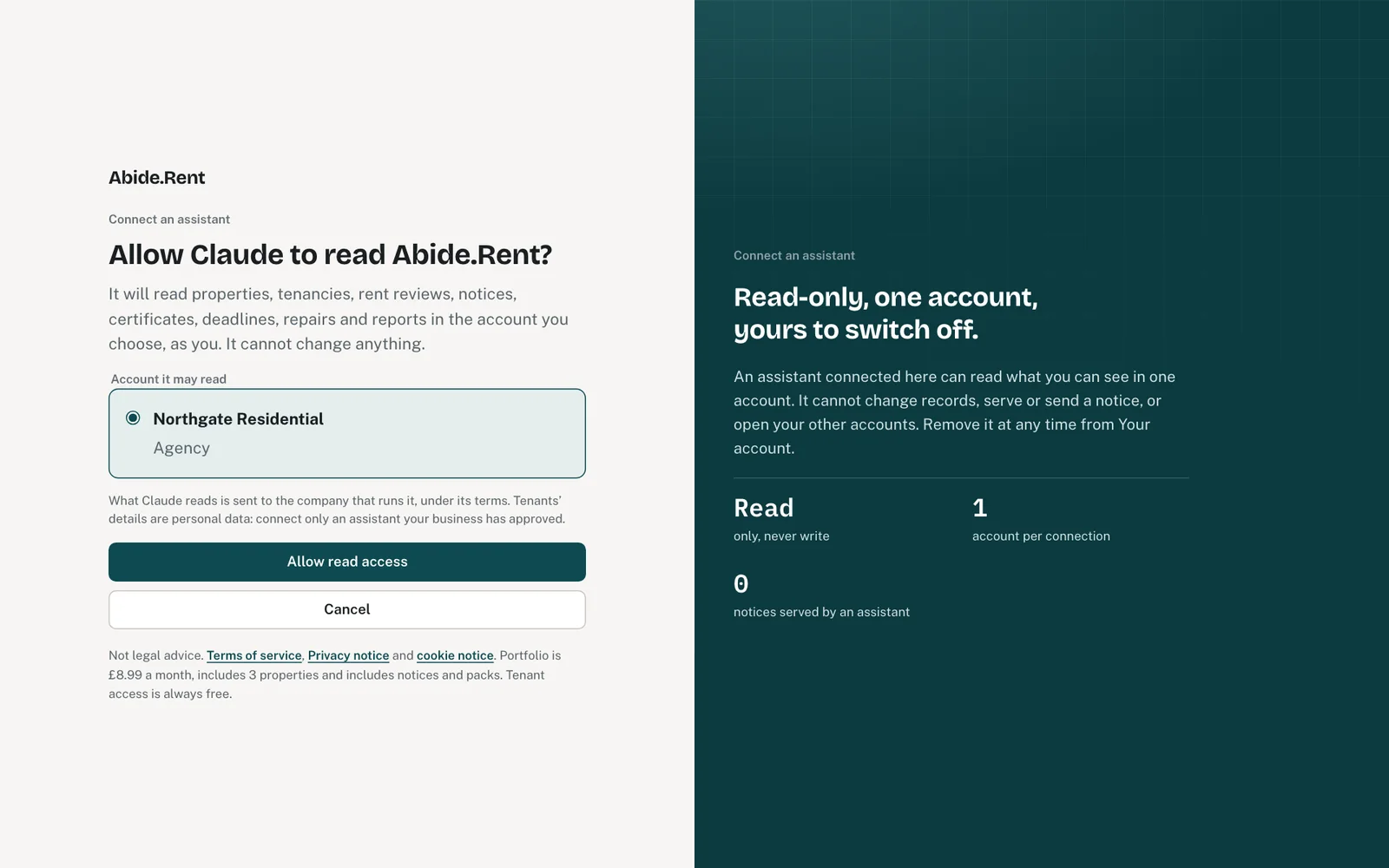
The consent page: the assistant, where it sends you back, the account it may read.
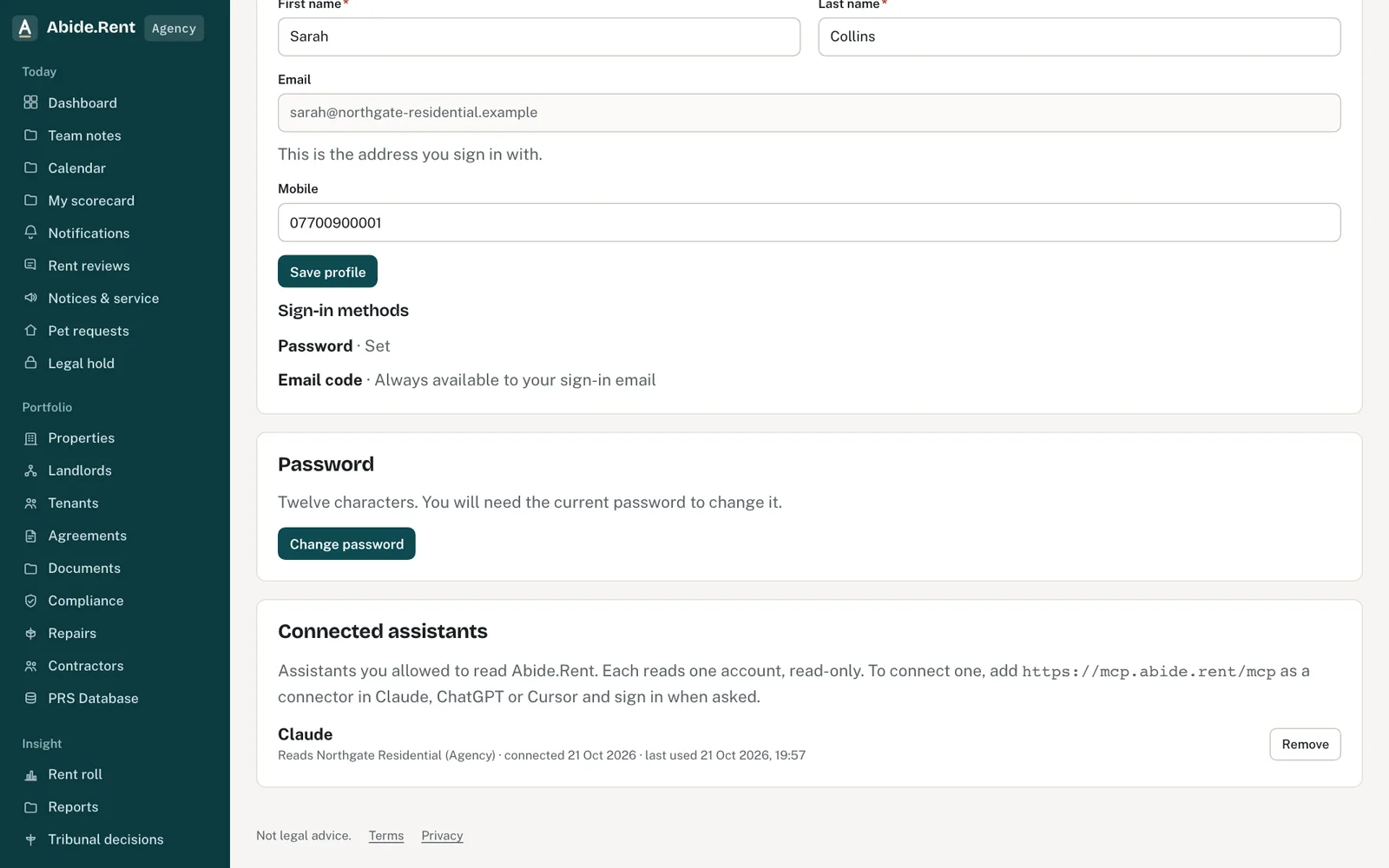
Connected assistants: the account each one reads, when it was last used, and Remove.
What you are deciding
Whether to let an assistant read one of your accounts, and which one.
Your options
- Connect an assistant. Add the Abide.Rent server as a connector and sign in. The assistant works in the account you choose, with your permissions and never more.
- Use the REST API instead. For a system rather than a person, an account owner can create an API key and call the REST API. The MCP server only accepts assistants that sign in as a person.
- Do not connect. Nothing is shared. Models can still read the public pages (/llms.txt) and the API reference.
How to do it
- In your assistant's settings, add a custom connector (it may be called an MCP server) with the address https://mcp.abide.rent/mcp. Claude, ChatGPT and Cursor all have one.
- When the assistant opens Abide.Rent, sign in if asked. You see which assistant is asking and where it will send you back.
- Choose the one account it may read: an agency, a landlord account or your tenancy. For an agency or landlord account only its owner can do this.
- Choose Read only or Read and make changes, then select Allow. You return to the assistant, which can now work from your records.
- To stop it, open Your account → Connected assistants and select Remove. It stops at once.
What an assistant can and cannot do
Every operation in the Abide.Rent API is an assistant tool: properties, tenancies, rent reviews, notices, certificates, legal deadlines, repairs, contractors, deposits, documents, reports, tasks and the team, the same as you see and do in the app. A tenant's assistant works only with that tenant's own records.
With Read only it can look things up and report, and change nothing. With Read and make changes it can also add and update records, send reminders and complete tasks — each recorded under your name, and only what your role allows. A record's history and the audit log mark each of these changes with the assistant's name, such as Claude (MCP), so you can tell them from changes made in the app or with an API key.
It can never sign or serve a notice, sign a document, take a payment, change your plan, manage API keys, change who has access to the account or close the account. A person does those in Abide.Rent.
Your data
What the assistant reads is sent to the company that runs it (for example Anthropic for Claude or OpenAI for ChatGPT), under that company's terms. Tenants' names and contact details are personal data: connect only an assistant your business has approved for it. Changing your password removes every connected assistant.
A worked example
On Wednesday 4 November 2026 the owner of a letting agency adds Abide.Rent to Claude, signs in and allows it to read her agency's account. She asks: "Which properties have a gas safety record expiring before Christmas, and is the tenant's copy recorded?" Claude lists four properties with their expiry dates and links to each in Abide.Rent. On Monday 9 November she removes the connection from Your account.
What Abide.Rent does for you
- Asks you to sign in yourself; the assistant never sees your password.
- Limits each connection to one account and to the access you chose.
- Lists every connected assistant on Your account, with when it was last used.
- Stops a connection at once when you remove it, change your password or lose access to the account.
If something goes wrong
- “Only the owner of this account can connect an assistant to it.”
What to do: Ask the account owner to connect it, or choose an account you own. - The assistant says it is not authorised, or asks you to connect again
What to do: Your access to that account ended, or the connection was removed. Connect again and choose an account you can use. - “This request cannot be completed”
What to do: Start again from the assistant: the request was changed or has expired. Nothing was connected. - The assistant cannot find a record you can see
What to do: It reads one account. Check Your account → Connected assistants for which, and connect again for another. - An assistant asks for your password or an API key
What to do: Do not give it. Abide.Rent asks you to sign in yourself; the assistant never sees your password.
Common mistakes
- Giving an assistant your password. It never needs it: Abide.Rent asks you to sign in yourself.
- Connecting a personal assistant to an agency account without the business's agreement: tenants' details would go to its provider.
What to do next
More in Integrations and API
 API keysCreate a key to use the Abide.Rent API. Each key is shown once, has scopes, and can be deactivated or deleted.
 Bringing properties across from other softwareExport a spreadsheet from your current system and import it, or send it to us and we import it for you, free.
 Migrating your records to Abide.Rent: we do it for you, freeSwitching from another system, spreadsheets or folders of documents? Send us what you have and we import it and set you up, at no cost.